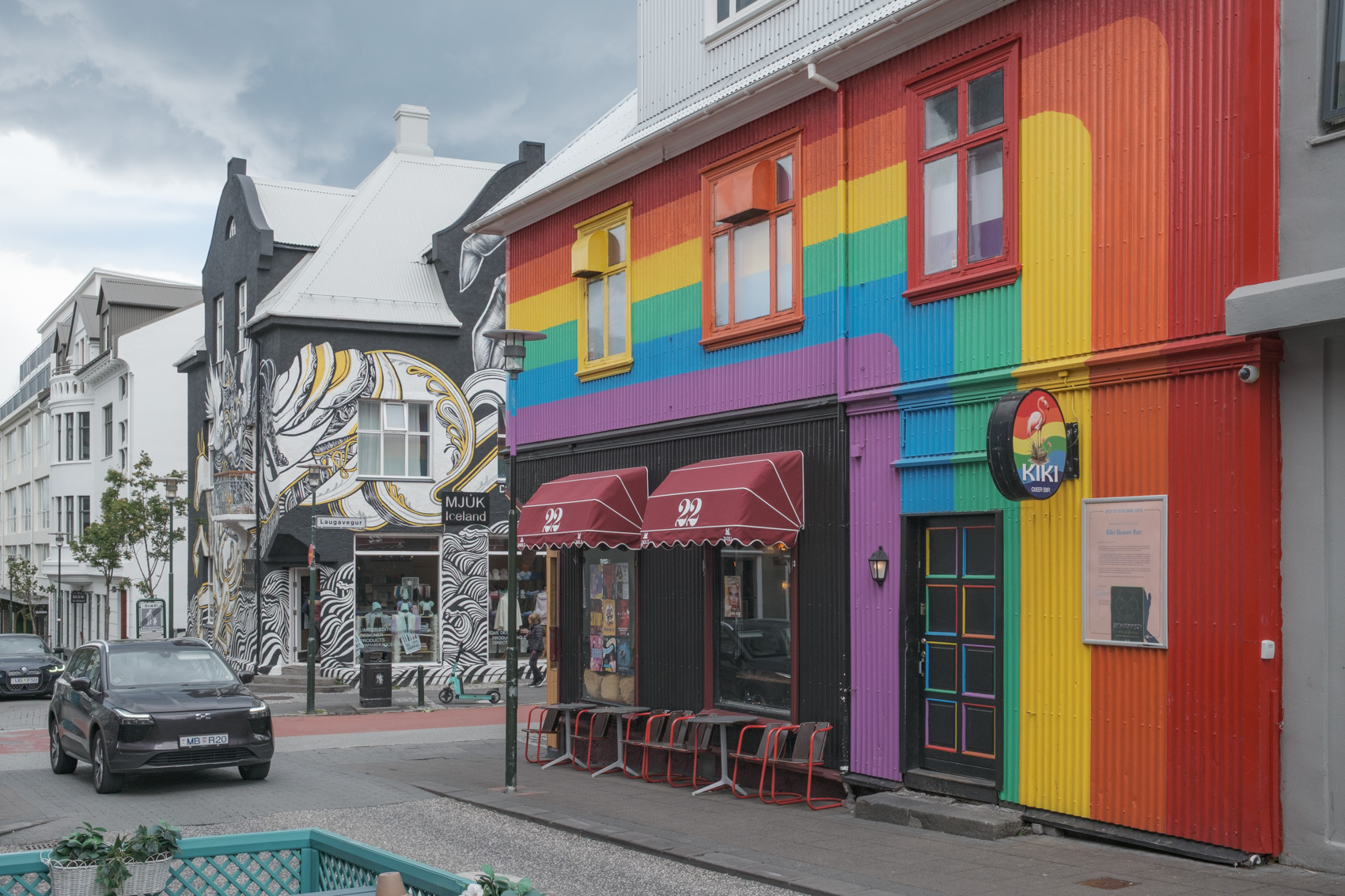
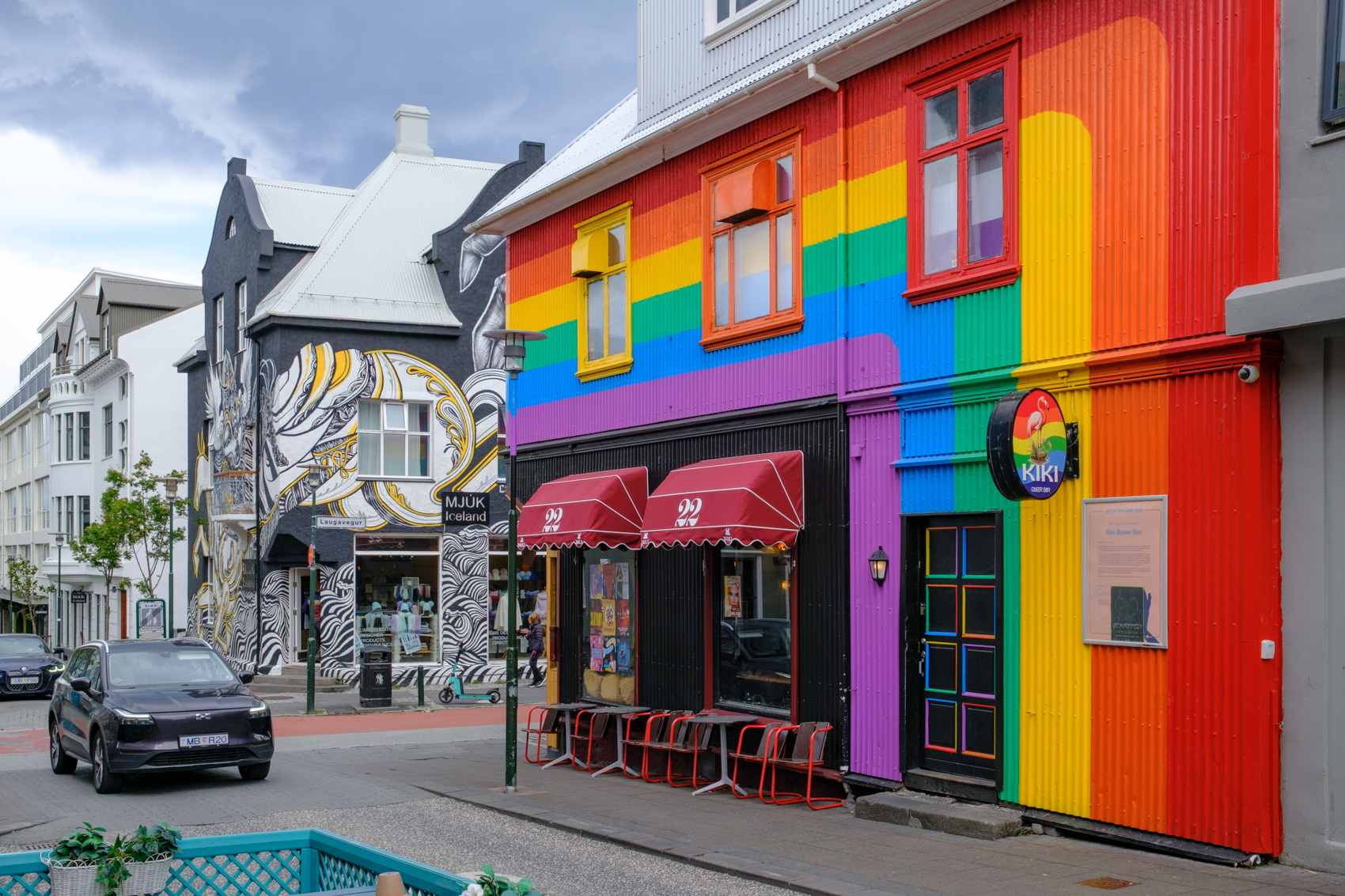
Drag the gold bar in the center of the image above to compare two version of this image taken in Reykjavik, Iceland last summer. The version on the left is Fujifilm’s Eterna film simulation while the version on the right is Velvia. Eterna is very flat and low in contrast by comparison, but that also makes Eterna an ideal simulation to use when shooting video if you want latitude to color grade the footage later. Velvia, on the other hand, is the most saturated of Fuji’s simulations. Most simulations have fairly subtle differences but in these two you can see quite easily how the simulation setting can impact your final jpeg quite heavily.
Fujifilm Film Simulations and Recipes
Part 1: A comparison of the current film simulations (available to the X-Trans V sensor)
It’s been about one year now that I’ve had my Fujifilm X100VI. Honestly, I haven’t used it as much as I’d hoped, but I haven’t been traveling as much as I’d hoped, either. I did get three good trips logged with it in Iceland, Spain, and China last year but it was always a secondary camera alongside my trusted Nikon D850. The whole point of this first year with the Fujifilm system has been to get comfortable with the gear and to get a solid selection of different types of photos so that I can start working on building my own recipes.
If you’re already familiar with Fujifilm film simulations and recipes, feel free to skip ahead. For those unfamiliar, this post aims to be a very preliminary look at the various film simulations provided in the Fujifilm X100VI. Older models with older sensors may not have all of these simulations but I chose to work from my X100VI because it currently has the most. A few of these are even missing from my X-Pro3. It seems one or two are added every time Fuji updates the sensor. The X100VI uses the most current (at the time of writing) sensor, the X-Trans V. My X-Pro 3 has the previous X-Trans IV sensor.
A couple of definitions first, based on my own perceptions (correct me in the comments if I’m wrong):
Film Simulations: Film simulations are settings built into your Fujifilm camera that adjust the color profile that interprets the raw sensor data. Fuji has long been a film manufacturer, making some legendary neg and transparency films. They now add software to their digital cameras that mimic the qualities of their various film stocks. I’ve found these to be fairly subtle so far, but they can make a big difference as you move on to developing your own recipes.
Recipes: Using your chosen film simulation as a starting point, you can add more adjustments to your camera to affect contrast, saturation, grain, etc. A film simulation combined with these additional settings is considered a “recipe.” Websites like Fuji X Weekly are great resources for finding recipes if you don’t want to create your own. Fuji X Weekly is actually a great source of information on all things Fuji so I recommend checking them out. Their experience and knowledge is far beyond mine.
To create full recipes, you’ll need to do it in-camera or with software like X RAW Studio. X RAW requires that you have your camera actually connected to your computer, as it needs to use the camera’s own processor. The simulations are also found in Lightroom in the “Profile” panel under “Camera Matching.” I’ve done a little experimentation and it appears that files rendered from X RAW or Lightroom using the Fuji simulations/profiles look very, very similar if not exactly the same. But if you want to create recipes with other camera settings like color balance adjustments, highlight and shadow tweaks, grain, etc., then you might as well use X RAW Studio. I imagine you could get close by building a Lightroom profile, but I’m not sure the extra effort would be worth it. I plan to use X RAW Studio to develop my recipes and apply them in-camera for direct jpeg output, but when editing RAW files I’ll probably use Lightroom with the Fuji simulations.
One additional advantage of using X RAW Studio is that you can create as many recipes as you want and only assign a few to your camera’s custom settings (I think I’m limited to seven at a time on the X100VI). The recipes you haven’t assigned will stay in X RAW Studio and you can swap them out in the future however you like. It’s a good way to keep track of a greater number of recipes that your camera’s custom settings allow for.
Let’s take a look at Fuji’s current film simulations first.
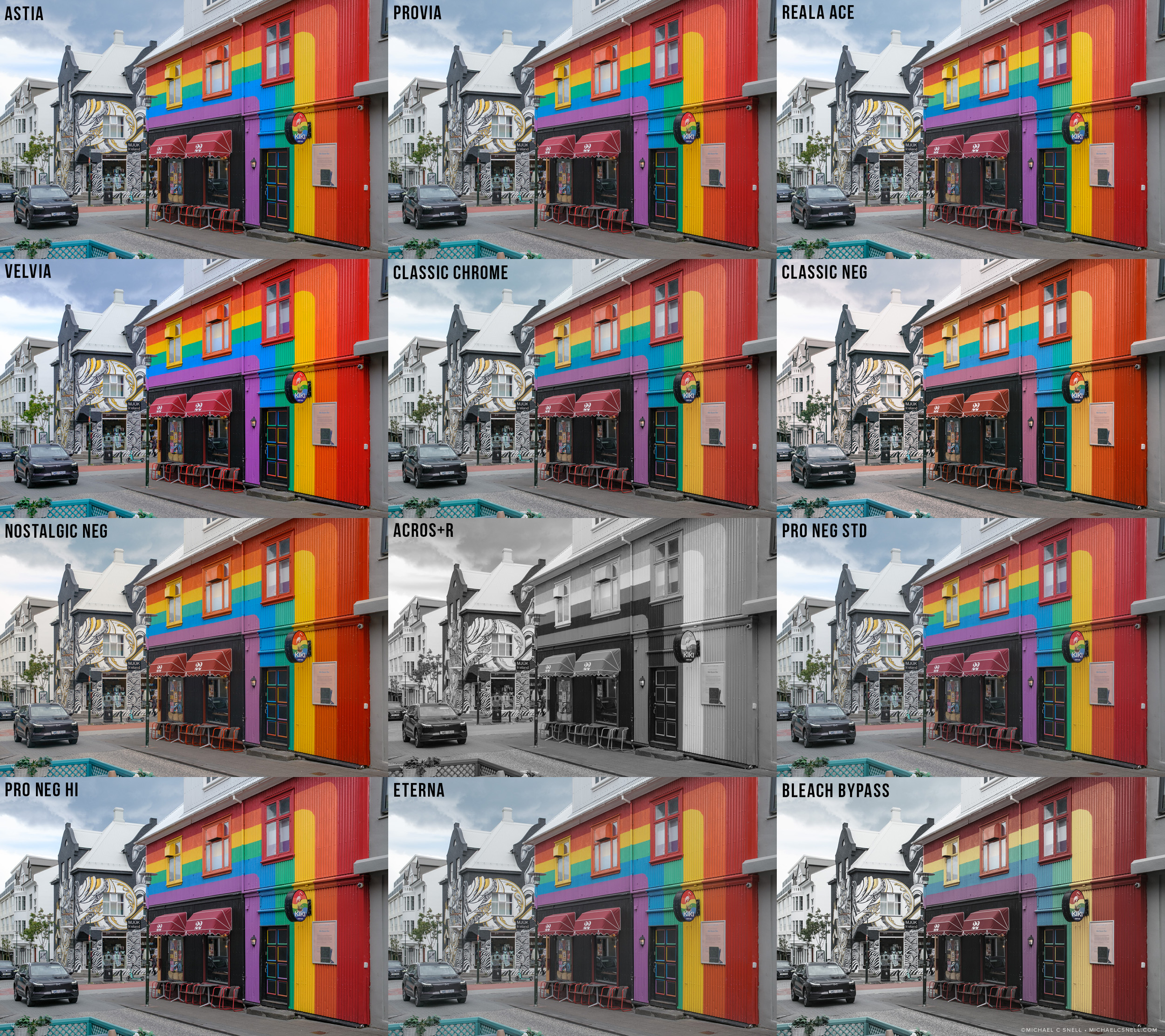
Clicking any of these image grids will open a bigger file, making it a bit easier to see the differences between simulations.
These are all of the color simulations and one of the b&w simulations (Acros+R) available on my X100VI. I’ll share all of the b&w options below, but let’s focus on color right now.
(Note: There’s also a “sepia” simulation that I haven’t included. It’s basically a brown-tinted b&w simulation but I don’t find it pleasing at all and feel I could easily get a more pleasing sepia by toning a b&w simulation if I ever wanted.)
I’ll go through Fuji’s description of each of these simulations with my comments in parentheses:
Astia — Softer color and contrast for a more subdued look. (A fairly standard look with nice, rich blues — not teal blues like Classic Chrome.)
Provia — Ideal for a wide range of subjects. (Provia was a film I turned to when Velvia was too much. For portraits or other situations where I didn’t need those levels of high saturation that Velvia provided).
Reala Ace — Faithful color reproduction with hard tonality suitable for various scenes. (Similar to Provia — very well-balanced and true in color with a bit more brightness in the mid-tones giving it a bit more pop.)
Velvia — Vibrant reproduction, ideal for landscape and nature. (I shot a lot of Velvia back in my film days. It was the go-to film for super saturated colors and was a landscape favorite. Not the best for portraits, however.)
Classic Chrome — Soft color and enhanced shadow contrast for a calm look. (This is becoming a very popular simulation with some saying it is based on Kodachrome, even though that’s not a Fuji emulsion. Muted colors, teal skies.)
Classic Neg — Enhanced color with hard tonality to increase image depth. (A little more contrast than Classic Chrome. Crisper? Warmer in the highlights but a little bluer in the greens.)
Nostalgic Neg — Amber tinted highlights and rich shadow tone for printed photo look. (A slight amber tone overall, especially noticeable in highlights. This one interests me for old European villages or ruins where the aged look of the amber tones might give a nice warm feel.)
Acros+R — Enhances contrast and darkens skies considerably in ACROS (We’ll take a look at the b&w sims later but I included this one here because it simulates shooting with a red filter which is something I often did when shooting b&w film)
Pro Neg Std — Ideal for portrait with soft gradations and skin tones. (Similar to Classic Chrome, but without the teal skies.)
Pro Neg Hi — Ideal for portrait with slightly enhanced contrast. (A little “punchier” version of Pro Neg Std, from what I can tell.)
Eterna — Soft color and rich shadow tone suitable for film look movie. (A good, relatively flat sim that can be good for shooting video.)
Eterna Bleach Bypass — Unique color with low saturation and high contrast. Suitable for still and movie. (Based on a darkroom process that left a mostly desaturated image just just a bit of color remaining)
For more detailed information on each simulation, and a grid of which simulations are available for each sensor generation, Fujifilm has a really useful page covering all of that. That page also contains a graphic placing every simulation on a chart showing where each falls in terms of tonality and saturation. It’s helpful to see information like this from Fuji because simulations can act quite differently depending on the content of your image. It’s difficult to make real assessments based off of just an image or two.
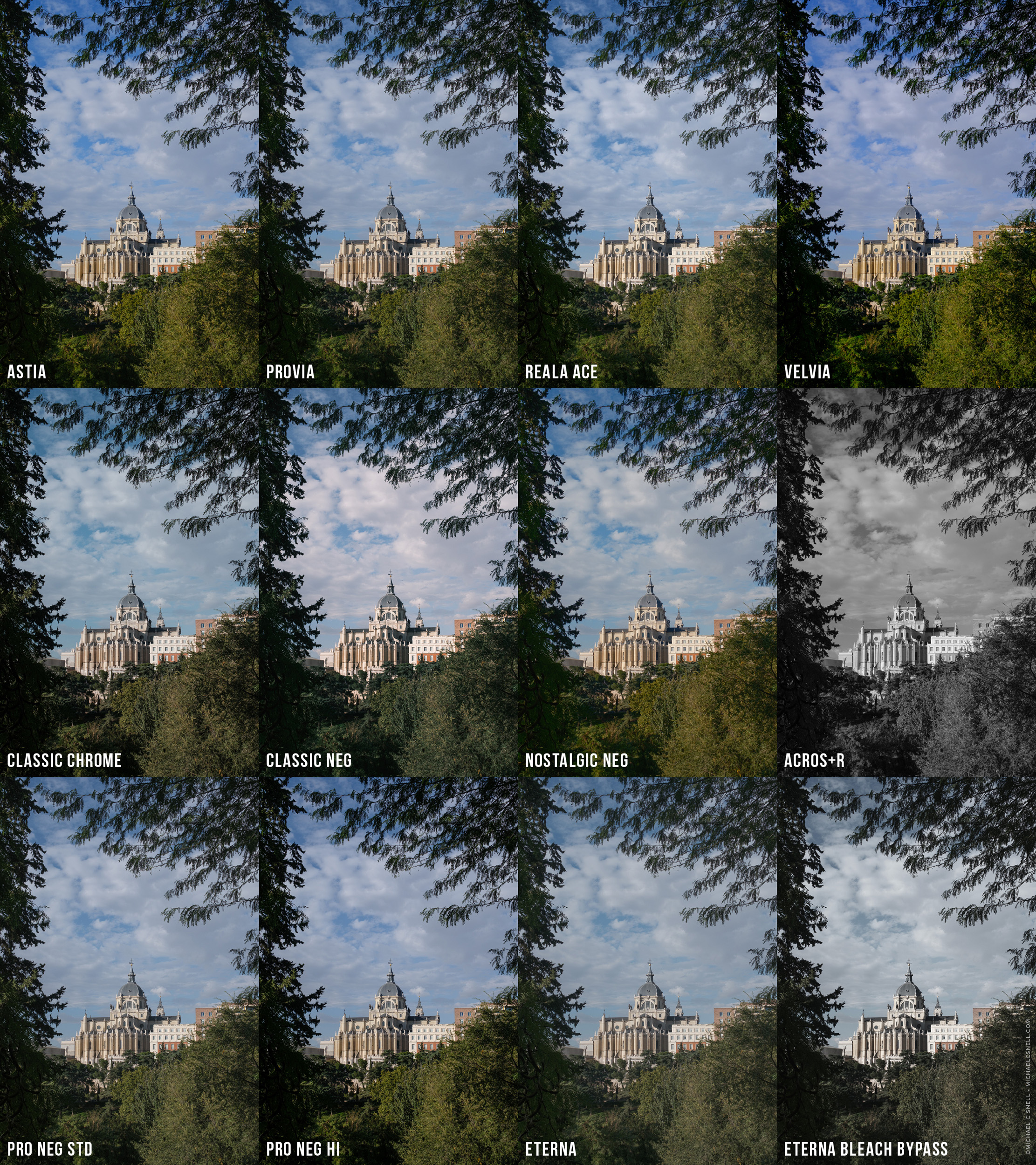
This landscape/architecture shot from Madrid might make some of these simulation differences easier to spot. It seems many of the differences lie in blue skies and green leaves. Urban shots like the one from Reykjavik we looked at first don’t always provide all of those same indicators. Still, I’m finding that it’s best to try all of these simulations out in a variety of situations before settling on your favorites.
In the Madrid shot above, for instance, Classic Neg really stands out to me for having a warmer pop to the clouds whereas Classic Chrome has a teal wash over the entire sky and more yellow-green foliage.
Too subtle?
If all of these simulation examples leave you thinking that the differences are just too subtle to worry about, here’s one more example. Not a great shot, but a quick grab from the streets of Beijing featuring an odd purple kiosk. This purple is an unusual color that’s not found in a lot of images and, perhaps because of that, it shows the differences in the simulations’ handling of color more intensely.
Here’s a version of the image using Adobe’s Portrait profile as a baseline reference for how the purple actually looked:

And here’s the grid showing the Fujifilm film simulations:
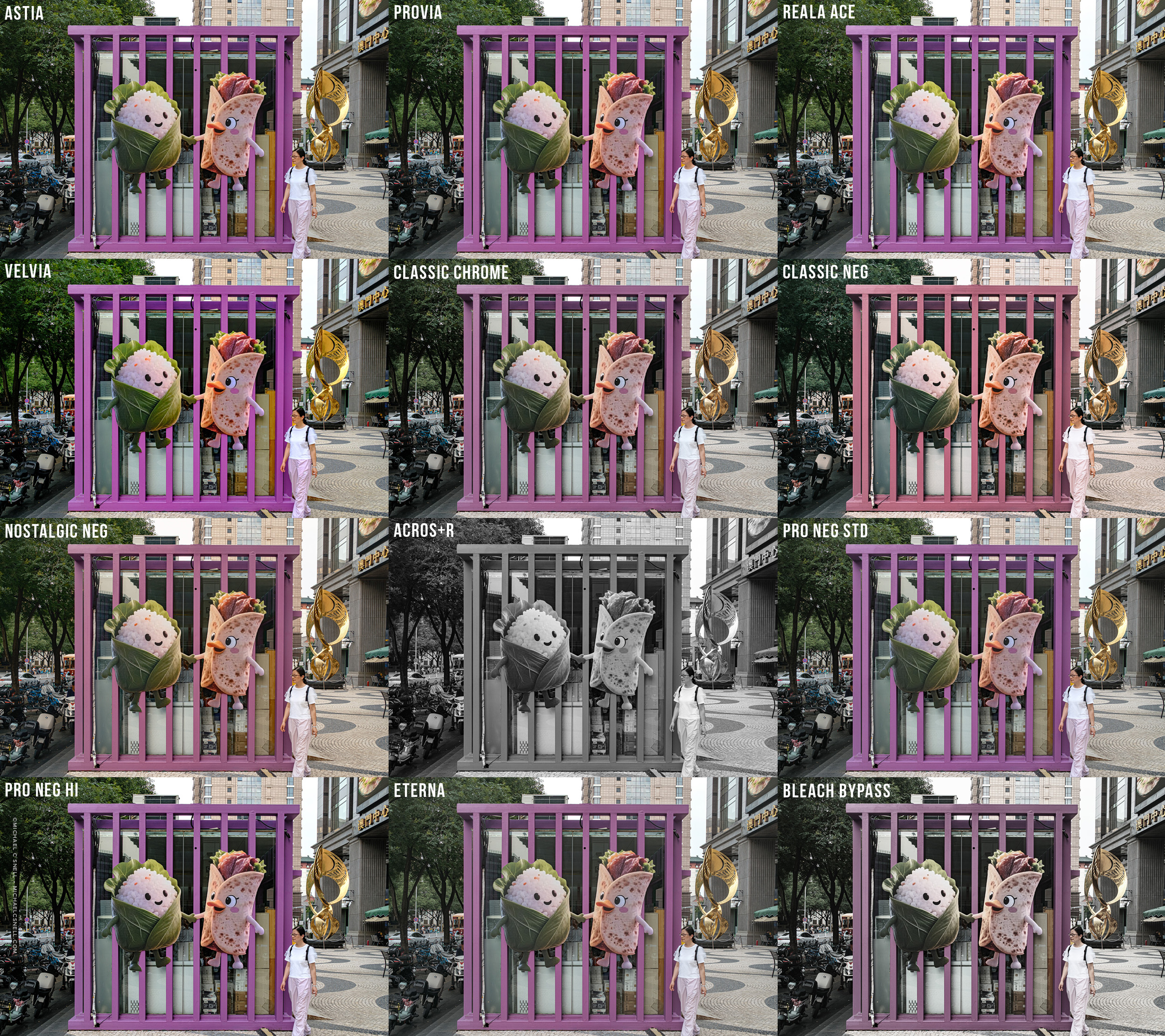
The different rendering of the purple is much more obvious than trying to see the differences between sky colors or green trees. It also illustrates why you can’t build a solid recipe off of a single image. Unless you shoot in a very consistent environment, with consistent light (like a portrait studio) you’ll need to build a library of different kinds of images in order to test and retest recipes as you’re working with them.
And before summing things up, let’s look at the b&w simulations:
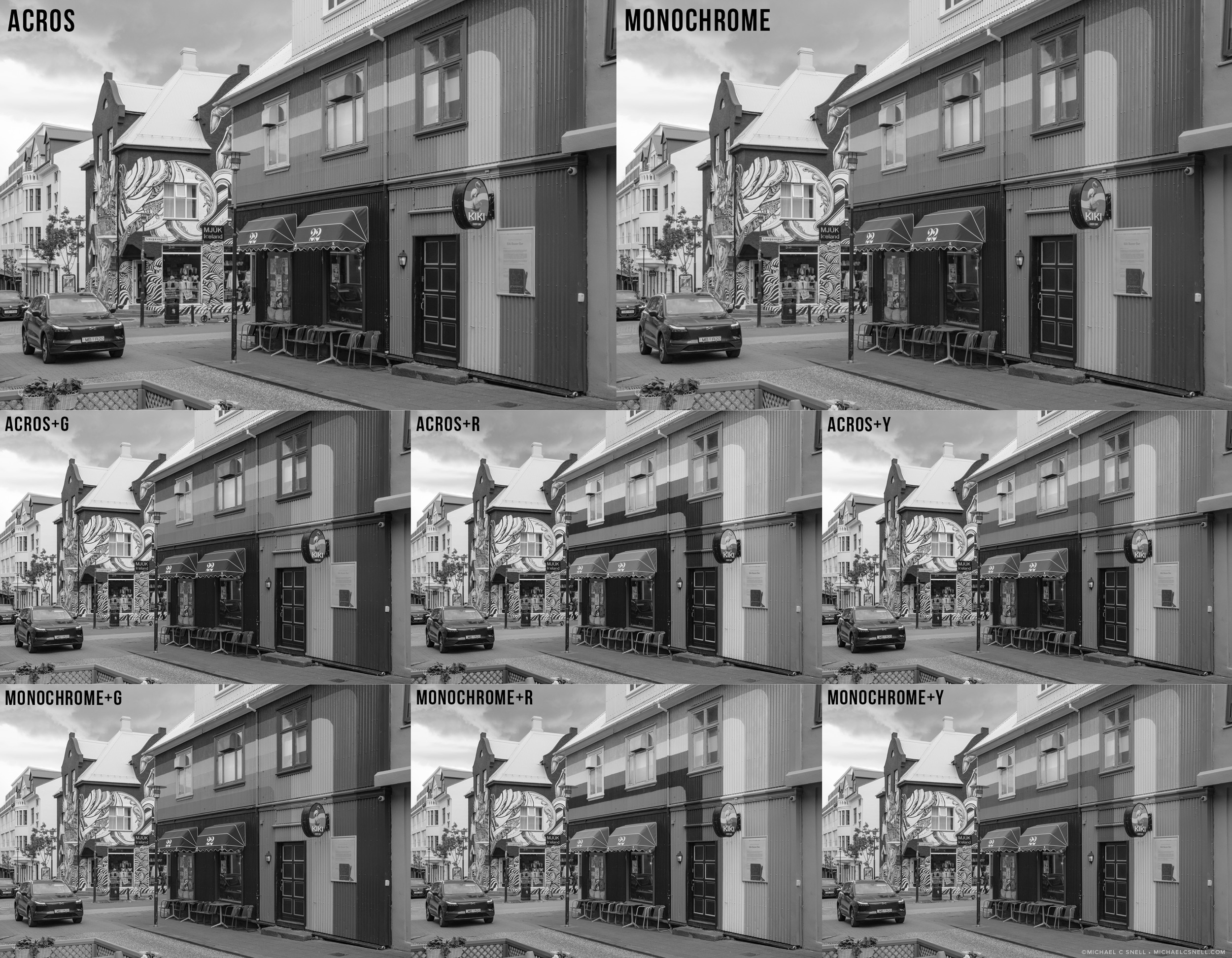
Acros and Monochrome are the two main black and white simulations. The others — ending in +G, +R, and +Y — just add the simulation of shooting with a colored filter on your lens (Green, Red, or Yellow). The red filter was always a good choice when you wanted to dramatically darken a sky to make clouds pop. You can see what it does to these examples where the blue stripe in the rainbow mural goes nearly black.
Between Acros and Monochrome, the differences seem fairly subtle. I think Acros might have a little more contrast and can be a bit more dramatic in certain instances.
So where do we go from here?
Honestly, film simulations are just the first step in creating recipes. All of the additional settings that go into a recipe can either dial down or amplify the characteristics that are already baked into the film simulation. Check out the examples on Fuji X Weekly to see how wide a range of effects you can get from film recipes. I’ll delve into the next steps in recipe creation in future posts.
My plan.
I should mention that recipes really only apply to jpeg files straight out of camera. If you shoot RAW, you won’t see any of the effects of in-camera processing — but you have more options later.
I doubt I’ll ever be a 100% all in-camera jpeg shooter. I’m too spoiled by being able to process my images later and not having to make every single decision on the fly in the field. I shot film for a long time and that’s the way it was. What you got was what you got. Now, with digital, I revel in the idea that I can delay some of those decisions for later, at the desktop. Wish you’d had a warmer white balance? No problem. Wish you’d increase the exposure a half a stop? No worries.
That said, I like the idea of shooting RAW + jpeg on the Fuji cameras. I can choose a recipe for a day’s shooting that I feel will handle the setting and situation well, and bake in a nice, cohesive look across all of the images. But… I still have the RAW files, too, to play with later and develop other looks. I’ve had pretty good results with processing the Fuji files in Lightroom. The Profile panel shows all of my available Fujifilm film simulations in the Camera Matching section and I can choose among all of those we’ve seen above before starting my RAW processing.
If I want to use all of Fujifilm’s processing options, I can use the Fujifilm X RAW Studio software. The trick with it, is that you have to have your same Fujifilm camera plugged into your computer because the software actually sends information to your camera’s processor to make the setting updates using its internal system. I find it a little inconvenient on a regular basis to connect my camera in order to edit photos but where I do see a big advantage in the X RAW Studio software, is that you can create recipes there and install them directly into your camera’s custom settings. My X100VI has room for seven custom recipe settings but I can have many more stored in X RAW Studio and swap them out on the camera as necessary.
I think this is where I’m headed, knowing what I’ve learned so far. I’ll definitely keep shooting RAW. Just for safety and peace of mind. But I want to develop some recipes specifically for the kinds of places that I travel and I’ll shoot those jpegs alongside the RAW. That way, if the recipe nails it, I’m all set. But, if I decided I’d like to try some other ideas later, I’ll have the RAW files to meet those needs. I toyed with shooting RAW only and not even bothering with jpegs but the recipes are such a part of the Fuji experience that I don’t want to give up on it yet. Plus, if I really like a shot right out of camera, I can actually post it only almost immediately and not have to wait until I’ve had time to process.
Next we’ll explore getting into recipe creation and explore the additional tools that are available beyond selecting a film simulation.




One Comment