A while back Adobe added a reflection removal tool to Lightroom Classic. I think it may have first appeared in a beta of Adobe Camera RAW but now it’s in the current versions of Lightroom Classic and Camera RAW. I’m writing this in July 2026, for reference.
I tried the tool when it was in beta and didn’t get great results. I did, however, notice that results varied greatly from image to image so I think it may just work better in certain situations. Now that it’s no longer in beta and is the actual releases of Lightroom and Photoshop, I tried it again and the results seem MUCH better. At least in the random images I selected to try it out on.
Here’s an example. This is a photo I took of a shop window display in Santiago, Chile, many years ago. Not a great shot, but I was attracted to the colors and the graphic nature of the typography. The reflections aren’t terrible in this case. You know it’s a shop window so the reflections kind of help sell that idea to your brain. Still, I thought it was a good image to try out the reflection removal tool on.
I’ll talk a bit below about where to find this tool and how to use it in Lightroom, but if you’re a Photoshop/Camera RAW user you can find the same tool in ACR under the Remove tab, under Distraction Removal, under Reflections.


After checking “apply” under the Reflections tool in Lightroom, you have a slider (more on that below) where you can adjust how much reflection you want removed. The above image has that slider all the way to the right, removing the entire reflection. At the midpoint, it would look just like the original image with the reflection intact.
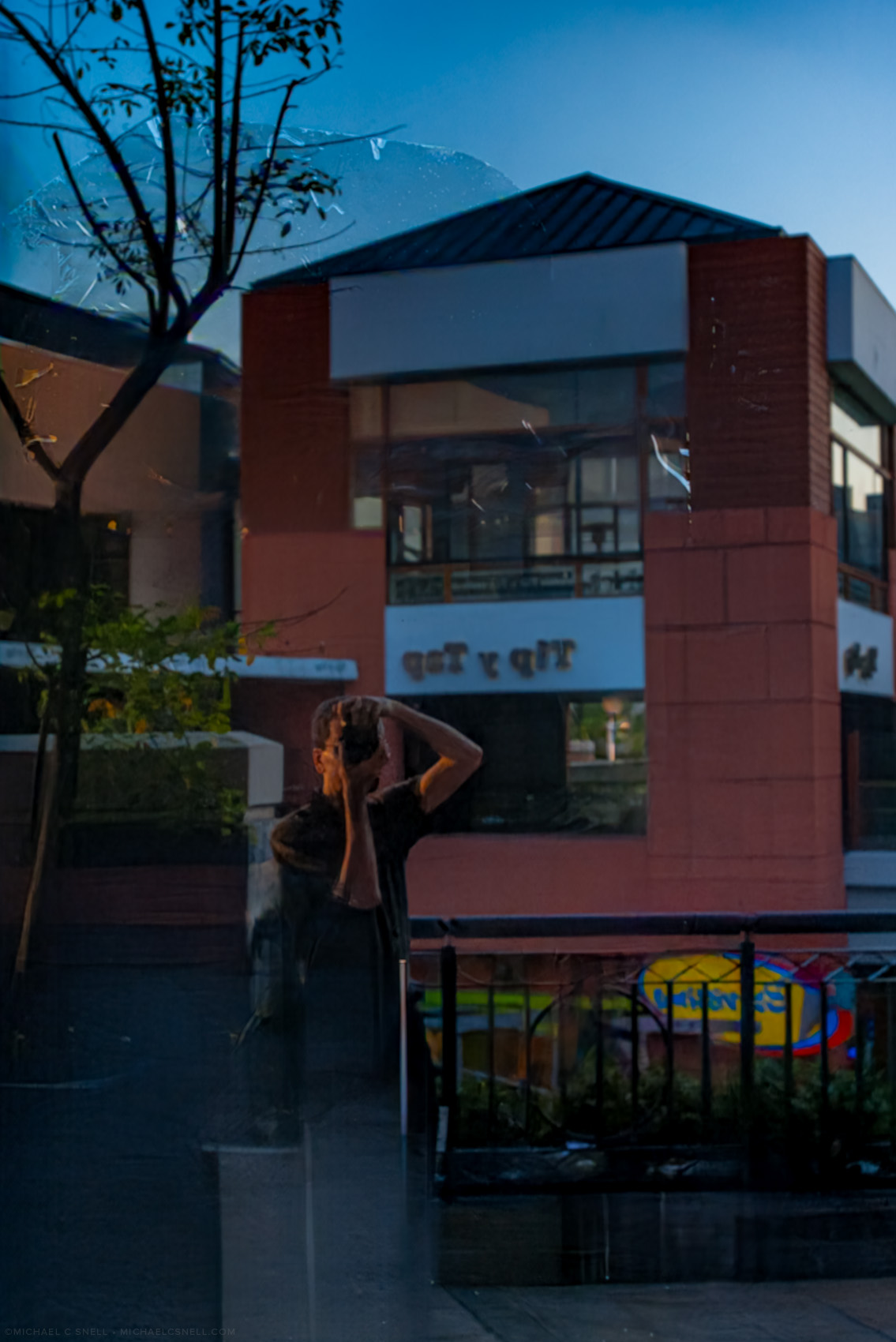
What is crazy, is that if you drag the slider to the left, you can see ONLY the reflection. Check out the example above where it has even salvaged my reflection as I took the photo even though I could barely see it on the original image.
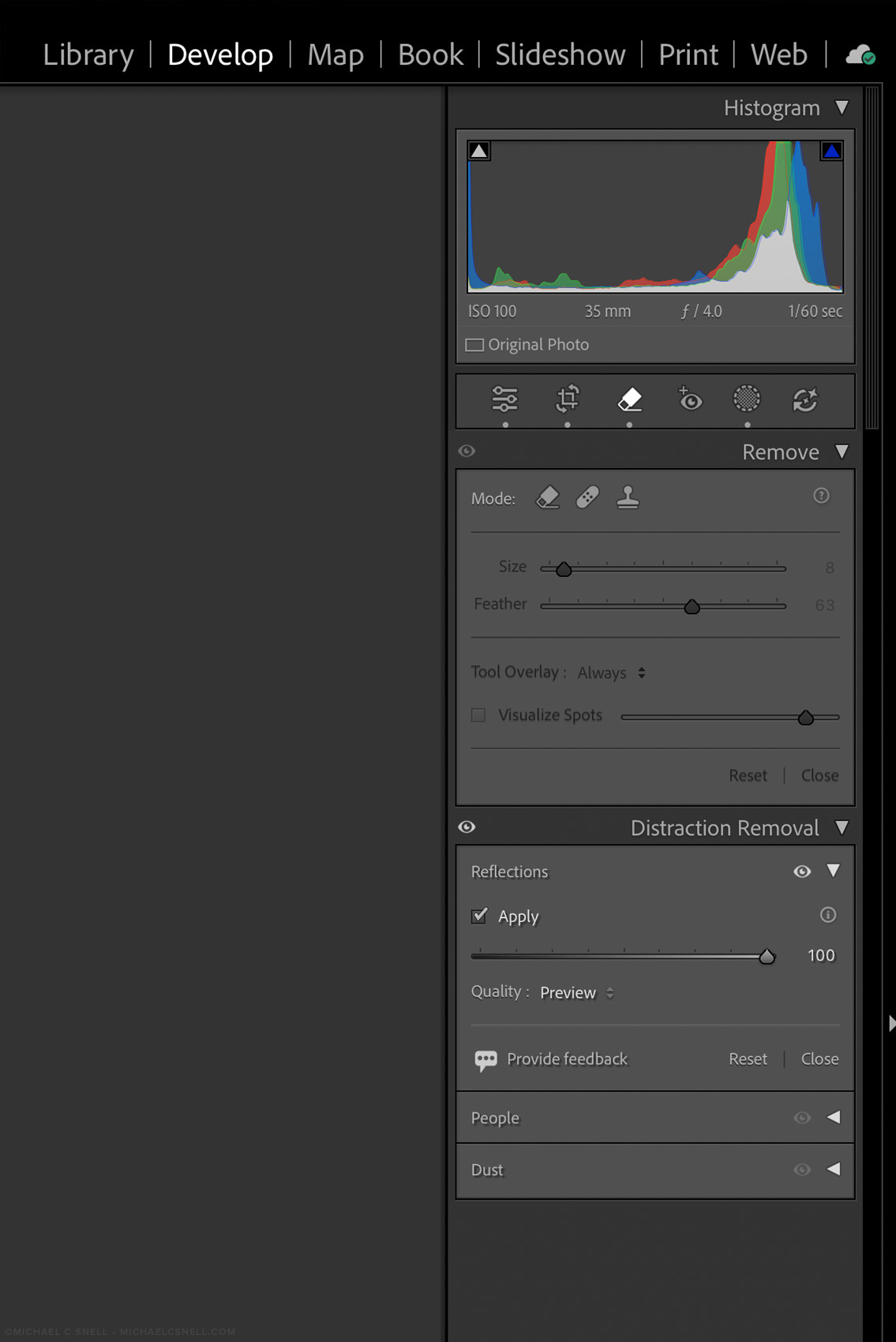
This where you find the reflection removal tool in the latest Lightroom Classic version. In the Develop tab, click on the icon that looks like an eraser to bring up all of the Remove options. Toggle open Distraction Removal and click the Apply checkbox under Reflections. It will take a little time to do its AI thing, assessing the image. My research shows that this does not use any Generative AI credits and that it’s doing the processing locally. I assume that may change in the future, but for now this seems to be a process included in my All Apps CC subscription fee.
Once Lightroom has finished assessing the image, you can move the slider that you’ll see just below the Apply button. Moving it all the way to the right (100) shows the maximum reflection removal, setting it in the middle (0) shows the original image with its reflection intact, and moving it all the way left (-100) shows only the reflection as determined by Lightroom.
As you can see from my first example, it pulls an amazing amount of detail out of the reflected image. I have not had results nearly this good when working on the beta version so some improvements have definitely been made. Or I’m by chance testing it on images that it’s better at assessing.
Let’s try another:
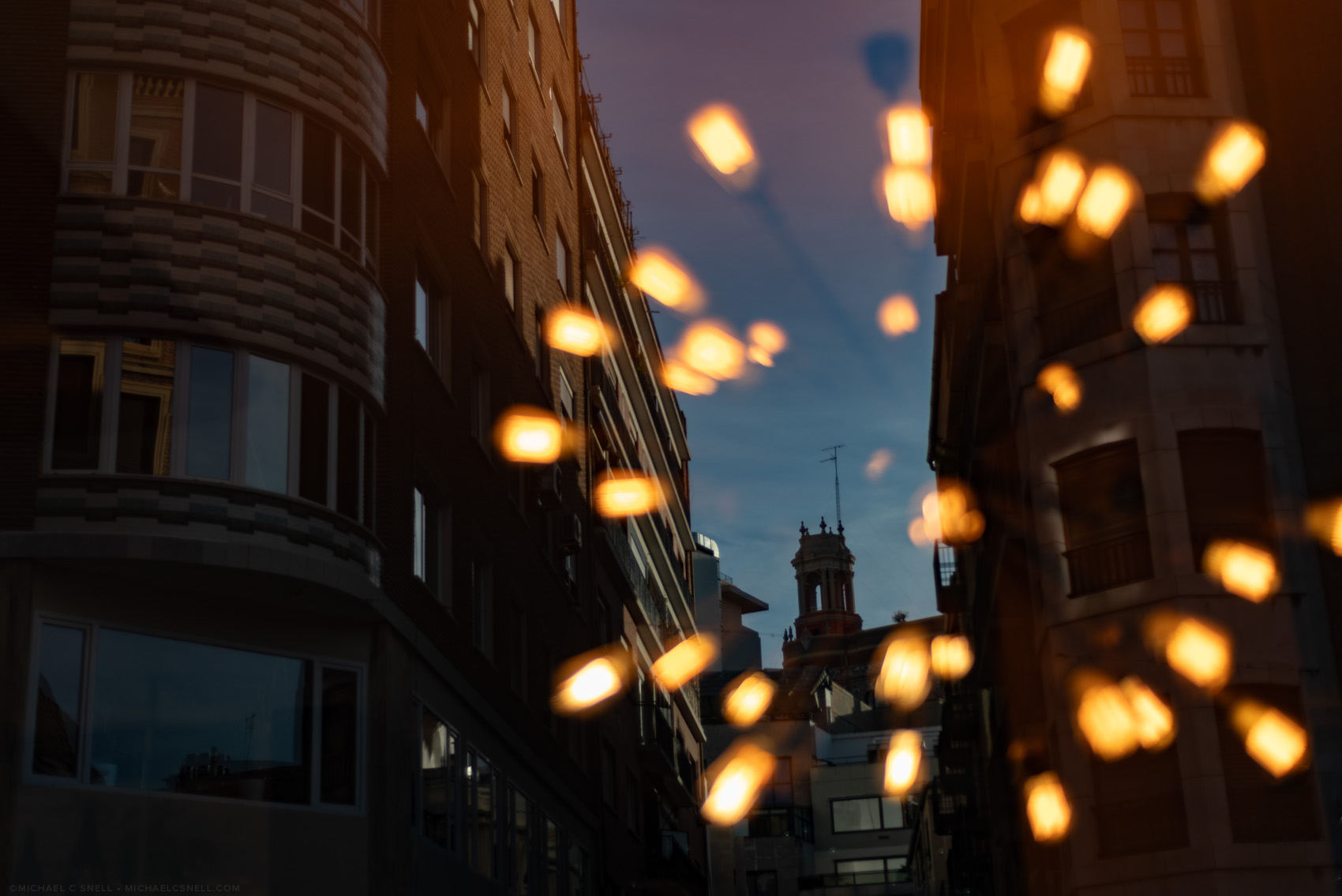
This is a photo I’ve shared before from my January 2025 trip to Valencia, Spain. It’s a street scene with a tower in the distance reflected in a shop window. Inside the shop is a light fixture that is out of focus, creating a sort of fireworks-style lighting affect.
I would think this would be challenging for Lightroom because what should be the subject is out of focus. Focus is, instead, on the reflected street scene. How will it do with this example?
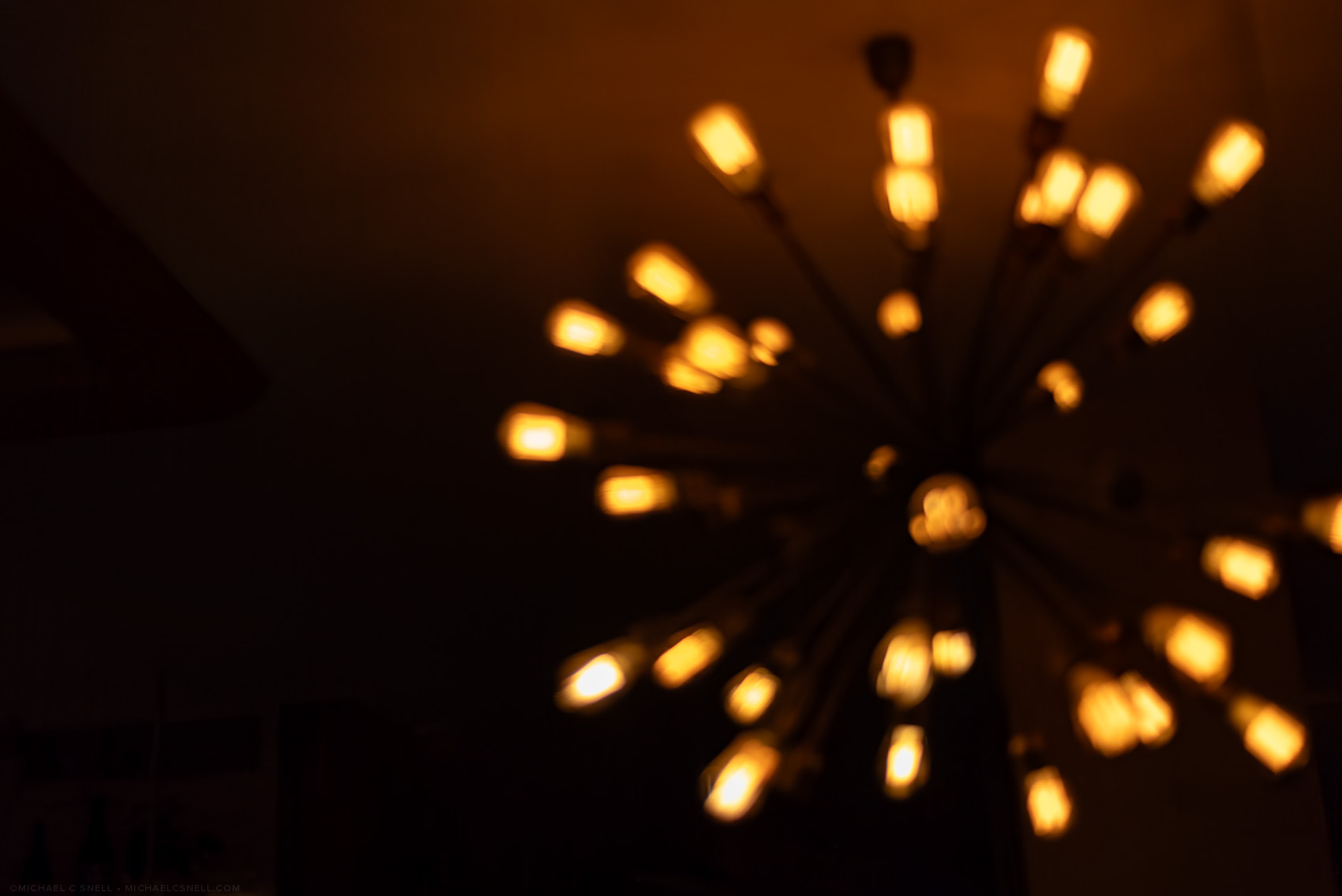
Incredible. At a 100 setting, Lightroom recognized the out-of-focus light fixture as the subject and successfully removed the reflected street scene.
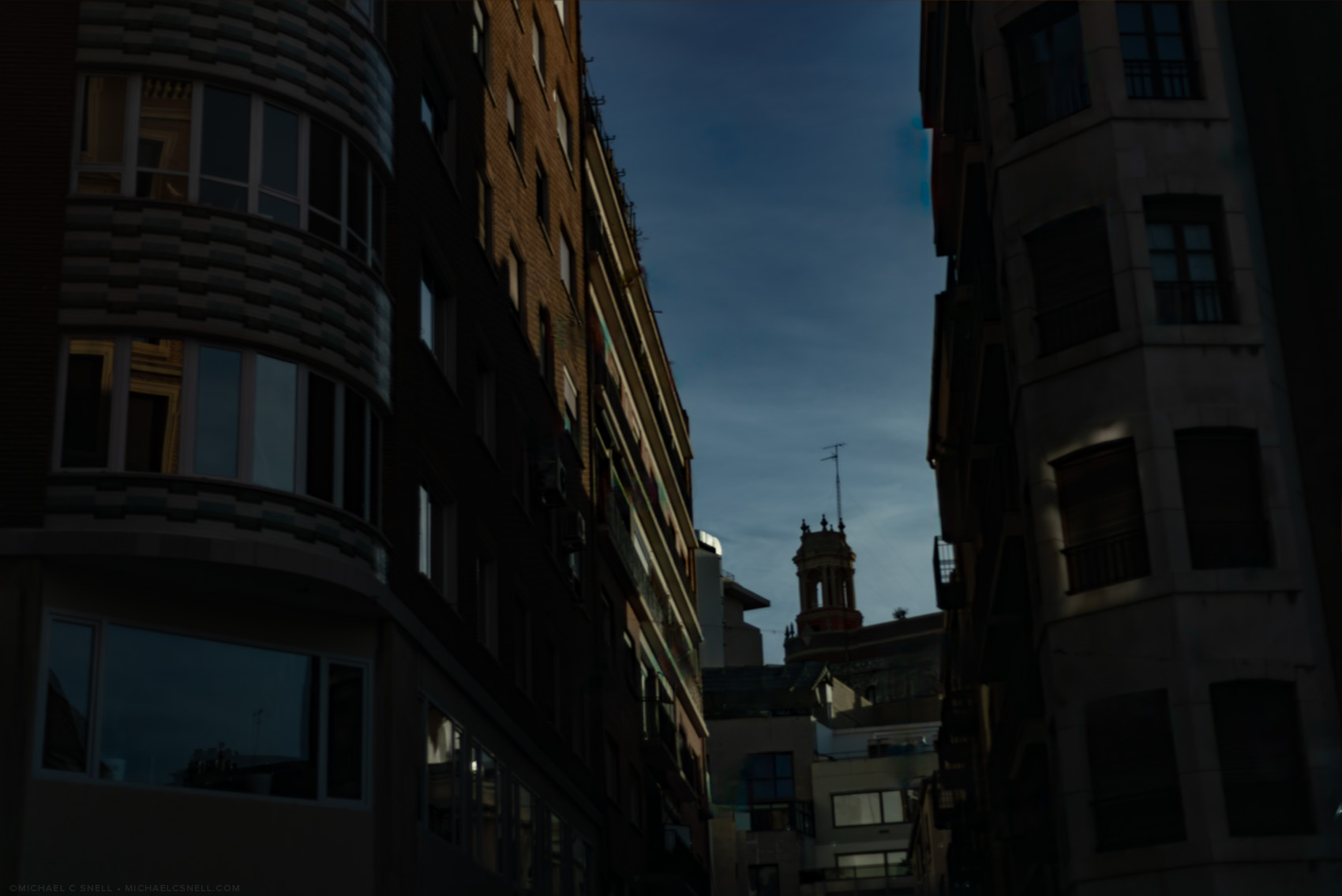
Set to -100 (the slider all the way left), we get just the reflected street scene. Oddly, there are more buildings reflected in the windows on the left side of the frame that were NOT recognized as reflections. I guess Lightroom draws the line at reflected reflections but I doubt that will ever be an issue. And who knows, future versions may support multiple levels of reflection. I wouldn’t put it past them.
My interest has been piqued an I’m going to keep my eye out for more images to try this reflection removal tool on.
One more thing I should mention about the controls in Lightroom Classic — below the slider there is a Quality toggle. All of the images I’ve shown here were set to the default “preview” but when I switched to “best” all of the sharpness and detail from the original returned. The preview versions were a bit soft, but you probably can’t see that well in these scaled-down images on this site. Switching to the best quality did take some time, however. Around 2 minutes on my machine which is no slouch. It’s nice that they have the preview setting there so that you get immediate feedback on the results, so that you can make an educated decision on whether it’s worth waiting for the high-res version.
Promising, to say the least.