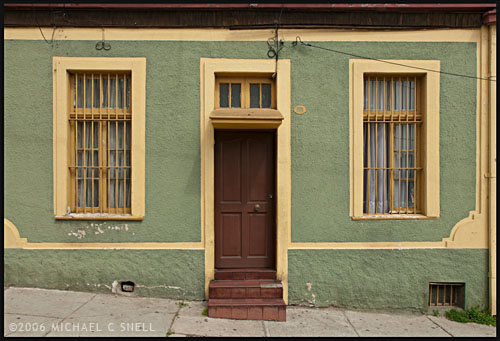
The new lens correction tools in Lightroom 3 bring perspective correction to the RAW workflow. Previously, I’ve had to go into Photoshop to make these corrections, but now they can be done right inside of Lightroom, which saves a few steps. However, I still prefer the Photoshop controls over those in Lightroom. I’ll try and explain why…
The image at the top of this post is the image after correction in Lightroom. Here’s the original image:
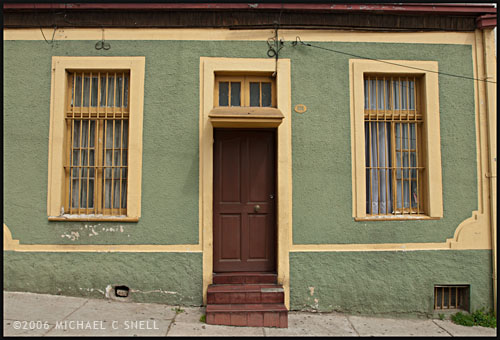
You’ll notice that the windows are tilting in toward the center of the frame — it’s perhaps most noticeable on the far right side where the edge of the building is leaning in as well. I take a lot of these kinds of shots and do my best in the field to keep everything straight in-camera, but sometimes you’re in a tight spot. Shooting wide and looking slightly up… you’ll get this kind of distracting distortion. A tilt-shift lens or a camera with bellows would take care of the problem, but you don’t always have that option available so it’s nice to be able to solve this issue via software.
In Lightroom, you have a pair of sliders for vertical and horizontal correction. Moving these sliders creates an effect similar to tilting a print in your hands side-to-side or up-and-down. If you ever controlled perspective shifts like this in the darkroom by tilting your easel, you’ll be familiar with the effect. It works reasonably well but it’s a little like a funhouse mirror and any large movements introduce some strange, new distortions. In the end, you have something that looks like this:
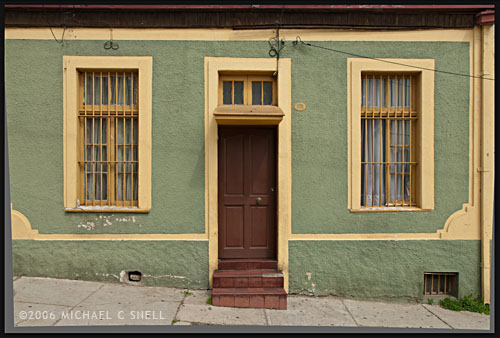
The vertical and horizontal lines are now straight (except for the sidewalk which, in the case, actually did run downhill like that) but you’ll notice that we now have grey “background” showing on the bottoms and sides of the images. Lightroom makes its perspective corrections inside the frame so you end up with an image that is smaller than the canvas size, to use Photoshop terms. You need to crop the image down to get rid of these grey wedges. Not difficult, but another step.
I’ll use this method a lot I’m sure. It’s really convenient to have this ability inside Lightroom. However, my preferred method of perspective correction is still part of Photoshop: the Distort control under Edit > Transform.
I turn on the grid in Photoshop first, to better see where things are skewed. Then, Select All and you’ll get corner handles on your image. It’s best to be zoomed out so that you can see some free space around the border of your image. By clicking and dragging these corner handles, you can stretch the image into alignment with the guides:
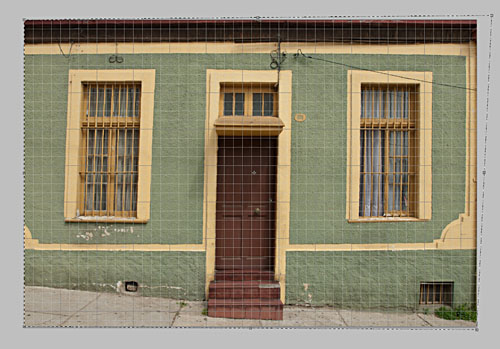
You can see the top-right handle has been pulled beyond the image frame here, eliminating the left-tilt of the right side of the building. The image will not show beyond the edge of the frame but the data is still there if you drag the corner point back. This gives you a live preview of what the final, cropped image will look like. Better yet, we’re making this correction to the outside of the frame so that there is no need to crop the image afterward. The perspective correction and crop are being handled simultaneously and there is no chance of an edge artifact getting left in your final file.
There is a Perspective control in the Transform group as well, but I generally prefer Distort. The reason is that Perspective tilts the image plane like Lightroom does — symmetrically. If I tug the right side out, the left side will move correspondingly. With Distort, each point moves individually — move the top right handle and only the top right corner distorts. I find this much more useful because the corrections I need to make are not always symmetrical.
Lightroom has a good set of correction tools — there are rotate and pincushion corrections there as well — but I’m glad to have the ability to go to Photoshop to fine tune images when needed. If I can do 90% of the image correction I need in Lightroom, I’m happy to jump over to Photoshop for the last 10%. No tool can do everything. When they try, they get incredibly bloated. Honestly, I kind of hope that Lightroom never adopts layers, etc. Keep it simple and I’ll go to Photoshop when necessary. The two programs work very well together.