Category Archives: software

Gypsum Hills of Kansas

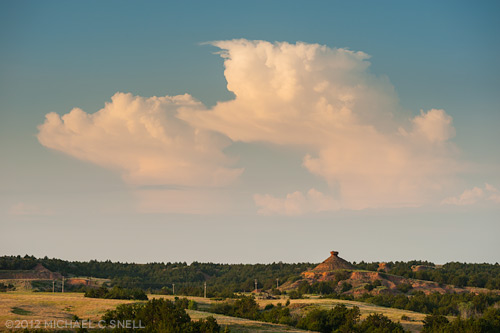
I spent a couple of days on the road last week with my friends over at Gizmo. They were documenting the Gypsum Hills Scenic Byway and I tagged along to grab some fresh stock photography. I hadn’t been on the backroads in this part of south-central Kansas for a few years so it was fun to reacquaint myself with one of the more unusual scenic regions of the state. I found some of my old favorite spots nearly unchanged and others — like my favorite little reflecting pool — to be entirely missing. The formation above was a new surprise. I’d been down this particular road before but evidently not quite this far because I don’t recall ever seeing that balanced rock before. As much as I’ve traveled this state, it is surprising to continue to run across these little treats. You’d think I’d have found them all by now but that’s the beauty of Kansas. The longer you look, the more you see, and exploration is nearly always rewarded.
On other fronts, this seems to be the season for software issues. As I mentioned previously, it appears that my recent WordPress update has disabled the comments on this site. I’ll continue to try and rectify that situation but I’m also investigating new platforms for some new features that I hope to add to my website yet this year.

I’ve also been working toward upgrading all of my Adobe software to CS6. I’m already running Lightroom 4 and have been using the beta version of CS6 for weeks but as of the end of May, the beta version was discontinued since the final version had been released. My transition was slowed somewhat this time due to a special offer I took advantage of where I was able to upgrade to CS5.5 in early May and a free update to CS6 would be provided by the end of May for me to download. Given the amount of Adobe software that I use, this added up to a substantial discount so I purchased my CS5.5 upgrades and waited for my download link for 6 to arrive. By May 30, I still hadn’t received it. I contacted Adobe and they manually added me back into the system and I finally received my link last thursday. On Saturday, I worked through the update process and it went very smoothly (thankfully). Until Mountain Lion is released, that should be the last of my upgrades for awhile. Good news, since I now need to get up to speed on all of the new features of the entire Adobe Creative Suite. At least I have a head start on Photoshop, having used the beta. All-in-all, it feels good being caught up again and feeling like I can get back to work.
Photoshop CS6 public beta

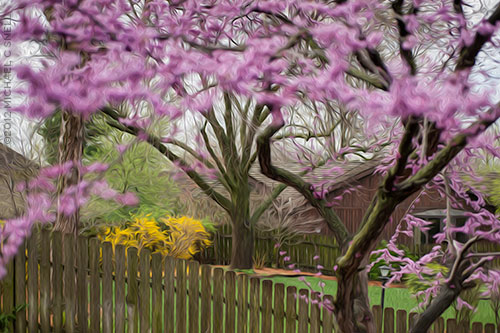
Just to further distract me (and yes, I’m sure that it is all about me), Adobe has released a public beta version of the new Photoshop CS6. How could I not download it and how could I not wasted endless hours checking it out? Happily I had some real work that I could use it for… which I did… and then I started playing around with the fun stuff. Lo and behold, who knew there was a new Oil Paint filter? I had to give that a go and the result is what you see above — a stylized and slightly Tim Burton-esque view of the redbud tree blooming in my backyard. It’s probably a little hard to make out all of the paint effects at this size but, trust me, there’s some cool stuff going on in there. This warrants further investigation.

So far I’m less impressed with the new Content-Aware Move Tool, but I also found an additional set of controls for it that may make me change my mind. Chalk today up to one, big productivity loss… I mean… professional development opportunity.

Lightroom 4 beta in the real world

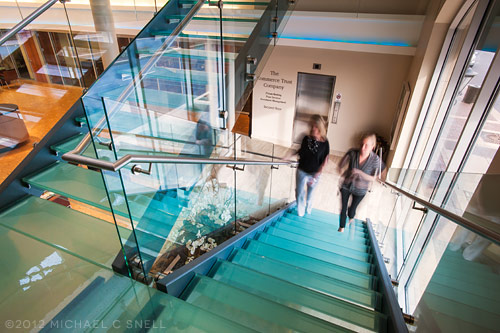
I had an architectural interior shoot this week that provided me the perfect opportunity to put the Lightroom 4 beta through its paces in a real-world situation. Much as I would love to move my entire collection over to LR4 right now, it is still only in beta. The prudent thing is to wait until the official release and, in the meantime, just test some duplicated files that don’t risk anything if there is a problem. But this was an isolated shoot that I could easily break out of my catalog and wouldn’t cause any real harm — even if I ended up having to reprocess it entirely at some point down the road.

As I’ve mentioned before, there is some relearning to be done between LR3 and LR4. There were a few times that I found myself moving the black slider to the right, expecting my blacks to get darker and momentarily being surprised to see them get lighter. When I think about it rationally, though, it does make more sense having all the main develop sliders zeroed out at their centers so that they all react the same way when moved right or left. After an hour or so, it was all feeling very natural and I imagine I’ll be messing up in reverse when I go back to Lightroom 3 now.

A few things really stood out to me in this experiment. First, Lightroom 4 beta just seems to handle major adjustments much better than previous versions. I was able to pull highlights back much further than it seemed I could before, and the result looked more natural. The situation I was shooting in was extremely contrasty. It was a fairly dimly lit interior and outside there was a thin layer of clouds that gave the sky that intense white that is always difficult to hold. Because of this, I was shooting 3 to 5 images bracketed, thinking that I’d most likely have to use some HDR techniques to keep detail in both the sky and the darker areas of the interior. As it turned out, I was able to manipulate the middle image of the bracket alone — in every case — using only Lightroom’s exposure, highlights and shadows sliders. I never had to resort to using the under- and over-exposed versions to make an HDR image.

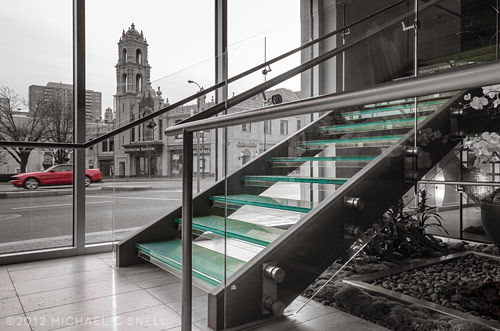
Another feature of the Lightroom 4 beta that I found extremely useful was the ability to adjust the white balance of graduated and spot adjustments. Take the photo above — the left side was a darkish, tungsten-lit interior that was very warm. The light coming in through the windows at the right was very cold due to the cloud cover. The result was an image that shifted drastically from warm tones on the left to much cooler tones on the right. By adding a graduated adjustment on the right that had a warmer white balance, I was easily able to even the scene out.

I’m already totally invested in this new version of Lightroom and am eagerly looking forward to its full release. The new processing engine alone is worth the cost of an upgrade to me and the new features will be a fantastic bonus.

Re-learning to ride a bike

Things generally slow down for me around the holidays and it takes a while for business to get back up to speed again afterwards. That pattern works well for me. I like to take that “quiet time” to re-focus on the coming year and to catch up on in-house activities like self promotion, learning new skills, etc. There’s more of that than usual going on this year, but one unexpected addition came along earlier this month when Adobe released a public beta of Lightroom 4.

There are plenty of Lightroom 4 reviews and introductory videos online already (like Julieanne Kost’s video overviews here) so I won’t go into detail at this point. I’ll do some deeper reporting once the final version comes out as some changes may still occur prior to that launch. For now, I’ll just mention some overall thoughts I’ve had as I have begun to explore the new interface.

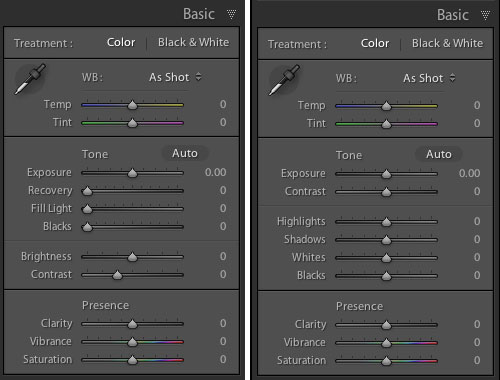
And there are some significant changes to the interface — especially to the Develop Module’s Basic panel:

That’s Lightroom 3’s panel on the left and beta 4 on the right. As you can see, the Recovery, Fill Light, Blacks and Brightness sliders have become Highlights, Shadows, Whites and Blacks. Everything has now been reconfigured to be zeroed out in the center of the slider now as well. My initial reaction to this was not very positive. I thought that this might have been yet another attempt by a software developer to make something “simpler” that actually removed some functionality. I’m not sure that’s the case here, though. Yes, things work differently, but I haven’t found anything missing. Nothing that I could do before but can’t do now. Some things, like adjusting the brightness of mid-range values, might just need a different approach now. In that instance, I find my self adjusting the Curve panel in place of using the old Brightness slider. Key here will be to remain flexible in your workflow and not to get hung up on the way you used to do things.

It’s early days and the whole point of these public beta releases are to generate user comments so that the final product can continue to be tweaked. With that in mind, I’m reserving some judgment at this point but I will mention anything interesting I stumble across as I continue to explore beta 4. I am very excited that Lightroom now handles video files and hope to work more with that in the near future. The Book Module also looks interesting, although I imagine I will continue to develop books in InDesign where there is more typographic control. I don’t need one program to do everything and would prefer that Lightroom stay focused on image processing and cataloging.

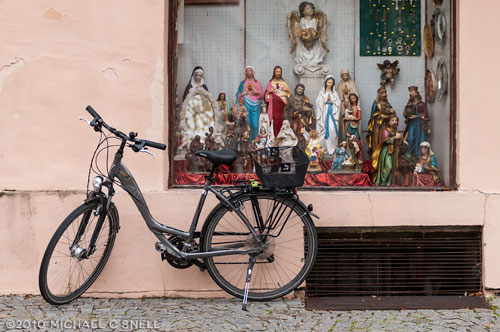
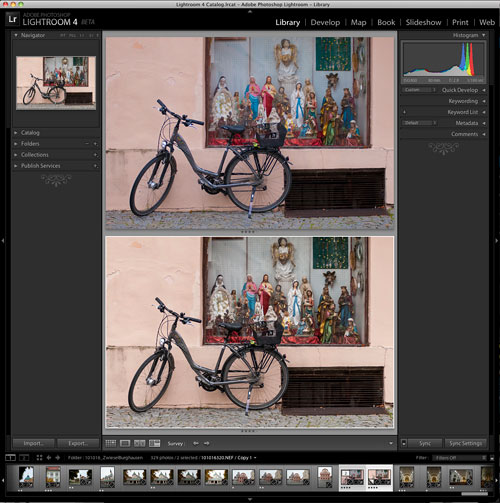
So far, my Lightroom 4 testing has amounted to importing a couple of duplicated folders from my Lightroom 3 catalog and playing with a few “trouble” images to see if 4 solves any shortcomings of 3. The bike shot at the top of this post is one that didn’t really have major problems, but I thought it might be worth exploring again. First I brought it into Lightroom 4, created a virtual copy (so that I could later compare it to the original 3-rendered version) and did the auto-conversion to the new 2012 process version. In this case, I found that 4 rendered the image a little flatter than 3 had. Next I zeroed everything out and started from scratch, processing the image more or less from top to bottom through the various Develop panels.

In the end, I felt like the 4 version had a little more snap. You can see the two in a comparison window in the screenshot above. Lightroom 3’s version is on top and beta 4 is on the bottom. Is the extra snap due to Lightroom 4? Maybe. But I also know that I can process the same image on two different days and get two different results. Every decision is subjective and there are few right and wrong answers when processing your images. I may have just been looking for a little more contrast today, whereas it was closer to the date of the shoot when I processed this image in Lightroom 3 and I might have been trying to more realistically portray the grey, rainy day as it was fresher in my mind at the time.

The real differences will come as I explore more images with huge contrast ranges or massive highlight issues. I think that’s where the new processing power of Lightroom 4 will really shine. I’ll be sure to share examples as I find them.

I like my water clear, thank you

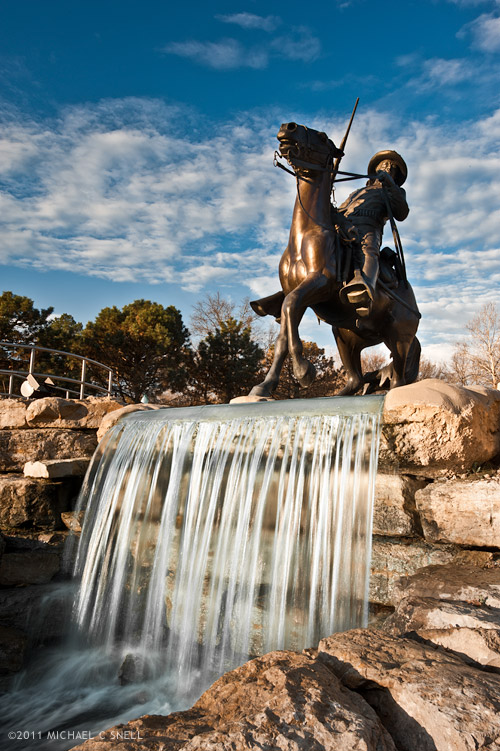
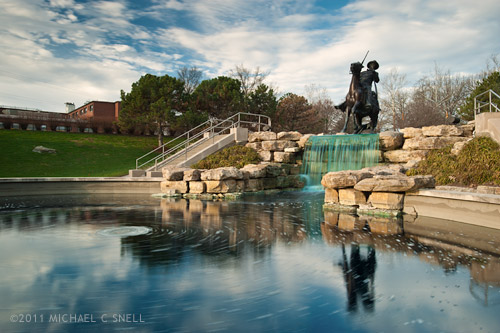
Adjusting this photo from Saturday’s NE Kansas excursion was a little more work than it needed to be. This is the Buffalo Soldier Memorial at Fort Leavenworth and apparently someone thinks the water looks better dyed an unnatural blue/green color. That, or it’s been this way since St. Patty’s day. Maybe there is some other perfectly reasonable explanation for the water’s color, but it looked really, really strange in the falls below the sculpture. You can see for yourself in the un-fixed horizontal version below:

Note to all fountain owners — green water doesn’t look better! In Lightroom, I had to go through a whole process of selectively desaturating the aqua range of the color spectrum and painting in with the adjustment brush a combination of increased contrast and desaturation until things were looking somewhat natural again. Whew.

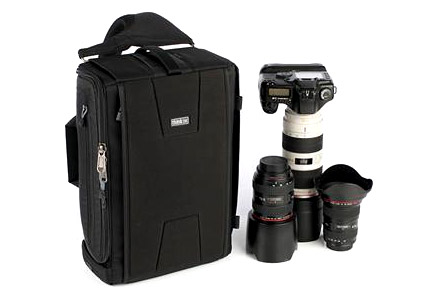
By the way, I was also putting a new camera bag through its paces on Saturday. For my upcoming Fiji trip in just a few days, I picked up a new Think Tank Sling-O-Matic. Here’s a photo of it from their site:

I had originally planned on getting the smaller Sling-O-Matic 10 but it wasn’t in stock locally and upon seeing the size of the 20, thought it might better fit my gear. This bag is slightly smaller than my Think Tank Airport Ultralight and is a sling-bag instead of a full backpack. While I’ll miss the distribution of the weight across both shoulders, I welcome the ability to swing the bag around to access lenses without taking the bag off.

The bag worked great on Sunday and I look forward to seeing how it does on a longer trip. My Ultralight fit nearly every overhead compartment I encountered although it was a bit tight in some. This one should slide right in, but the laptop will have to be carried separately in its own sleeve. There is a side pocket that will take the laptop on the Sling, but an inch or so sticks out and I’d be a little nervous that it might work its way out while out of my view on my back (the way the pockets work is that they’re top-opening when you sling the bag ’round front, but are side-opening when worn on the back).

I’ll report back after the Sling has logged a few air miles.

Lightroom 3: noise reduction

100911candles_sotc

In 2006 I was in Santiago Chile shooting with my new-ish Nikon D200 and I found myself in the dark interior of a 400 year old church. It seemed like the ideal time to play around with the improved high-ISO capabilities of that camera. Back in the film days, I used to shoot with Fuji Velvia that I rated at ISO 40 nearly all the time. I did everything I could to avoid film grain and stepping up to an ISO 100 film was almost extreme for me. As I recall, my D100’s lowest ISO was 200 and it seemed really extravagant at the time to have all that headroom. I rarely moved off of 200, though, as the noise would creep in at 400 and especially noticeably by 800. The D200 had a lower minimum ISO of 100 and felt more in my comfort zone but there were tantalizing reports that it even gave good results at ISOs of 1600 and higher. Each successive body I’ve owned has improved even further but I still tend to stay at minimum ISOs as much as possible. Old habits I suppose, but I just don’t like the look of digital noise at higher ISOs and I like my RAW files to start out as clean as possible.

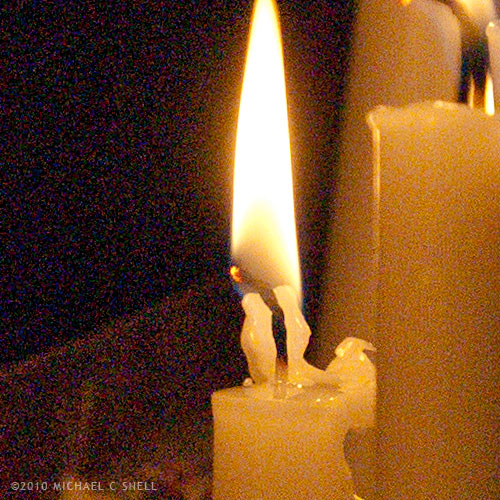
But back to that church — I didn’t have a tripod with me so I decided to experiment with higher ISOs to at least be able to capture something in that dark, candlelit interior. This shot of the candles themselves was taken at ISO 1600. It was a decent image when I processed it at the time, but there was some noise. I didn’t think much more about it until I was importing my Chile shoot into Lightroom 3 over the last couple of weeks and I decided to give the new noise reduction controls a test.

Here’s a crop at 100% of the image with noise reduction off:

100911noise_off_sotc

And, to keep these side-by-side in the post, here’s a crop with it on (I’ll explain more after the image):

100911noise_on_sotc

I’ll be the first to admit that this is not a true, scientific test. To be honest, I could have had a better result than that first crop four years ago if I had applied the noise reduction tools that were available at the time. What’s more, I’ve actually increased the noise issue a bit due to some exposure compensations that I’ve made in Lightroom. The idea here is just to show how much noise was in the RAW file, and how much Lightroom 3 was able to remove.

I’ve also really cranked up the noise reduction in Lightroom on the second shot. It’s more heavy-handed that I would typically use but, again, I wanted to kick the tires and see what she’d do. Luminance is maxed out at 100 in that second crop.

Is it perfect? No. There’s a bit of a painterly quality to the gradations, but it’s pretty amazing. You could continue to tweak the settings and maybe even add just a touch of LR3’s new Film Grain to disguise some of those gradation artifacts but, as a quick-and-dirty test, I’m impressed by the possibilities. I’m sure I’ll still stay in the low end of the ISO range 95% of the time, but I certainly won’t let dark conditions prevent me from shooting anymore. It’s comforting to know that even if the results aren’t great now, in four years your tools may improve to the point where you can salvage those images.

And if you’re wondering why I would add film grain after trying so hard to disguise high-ISO noise, it does seem counterproductive but it’s a technique I’ve used for years to disguise areas of retouching. Sometimes you’ll need to add a gradation to a sky or something of that nature and the retouched area looks smoother and more noiseless than the rest of the image, calling attention to your efforts. Adding a little noise or grain will unify the original image and the retouch and make everything blend. In small doses, that added grain never shows up on output. Maybe that will be the subject of a future post…

Lightroom 3: perspective correction

100705correctedandcrop_sotc

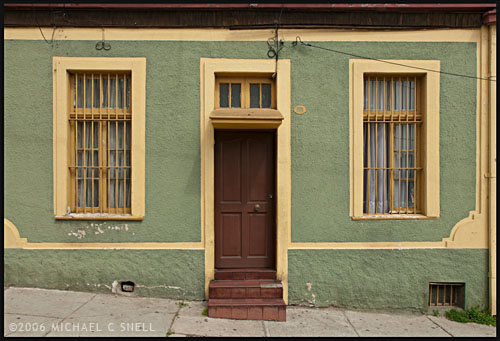
The new lens correction tools in Lightroom 3 bring perspective correction to the RAW workflow. Previously, I’ve had to go into Photoshop to make these corrections, but now they can be done right inside of Lightroom, which saves a few steps. However, I still prefer the Photoshop controls over those in Lightroom. I’ll try and explain why…

The image at the top of this post is the image after correction in Lightroom. Here’s the original image:

100705uncorrected_sotc

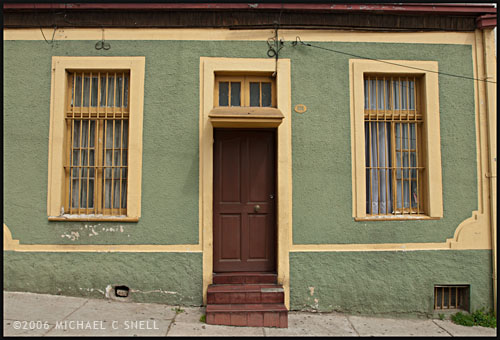
You’ll notice that the windows are tilting in toward the center of the frame — it’s perhaps most noticeable on the far right side where the edge of the building is leaning in as well. I take a lot of these kinds of shots and do my best in the field to keep everything straight in-camera, but sometimes you’re in a tight spot. Shooting wide and looking slightly up… you’ll get this kind of distracting distortion. A tilt-shift lens or a camera with bellows would take care of the problem, but you don’t always have that option available so it’s nice to be able to solve this issue via software.

In Lightroom, you have a pair of sliders for vertical and horizontal correction. Moving these sliders creates an effect similar to tilting a print in your hands side-to-side or up-and-down. If you ever controlled perspective shifts like this in the darkroom by tilting your easel, you’ll be familiar with the effect. It works reasonably well but it’s a little like a funhouse mirror and any large movements introduce some strange, new distortions. In the end, you have something that looks like this:

100705correctednotcrop_sotc

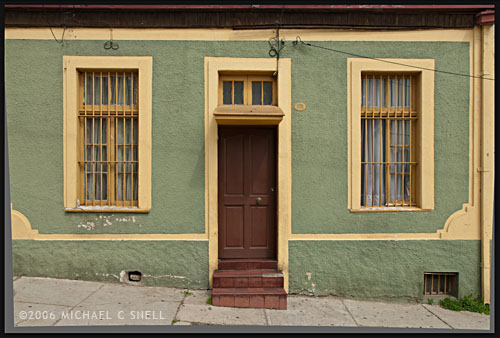
The vertical and horizontal lines are now straight (except for the sidewalk which, in the case, actually did run downhill like that) but you’ll notice that we now have grey “background” showing on the bottoms and sides of the images. Lightroom makes its perspective corrections inside the frame so you end up with an image that is smaller than the canvas size, to use Photoshop terms. You need to crop the image down to get rid of these grey wedges. Not difficult, but another step.

I’ll use this method a lot I’m sure. It’s really convenient to have this ability inside Lightroom. However, my preferred method of perspective correction is still part of Photoshop: the Distort control under Edit > Transform.

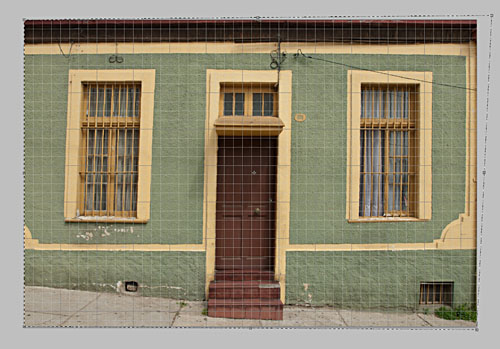
I turn on the grid in Photoshop first, to better see where things are skewed. Then, Select All and you’ll get corner handles on your image. It’s best to be zoomed out so that you can see some free space around the border of your image. By clicking and dragging these corner handles, you can stretch the image into alignment with the guides:

100705pscorrection_sotc

You can see the top-right handle has been pulled beyond the image frame here, eliminating the left-tilt of the right side of the building. The image will not show beyond the edge of the frame but the data is still there if you drag the corner point back. This gives you a live preview of what the final, cropped image will look like. Better yet, we’re making this correction to the outside of the frame so that there is no need to crop the image afterward. The perspective correction and crop are being handled simultaneously and there is no chance of an edge artifact getting left in your final file.

There is a Perspective control in the Transform group as well, but I generally prefer Distort. The reason is that Perspective tilts the image plane like Lightroom does — symmetrically. If I tug the right side out, the left side will move correspondingly. With Distort, each point moves individually — move the top right handle and only the top right corner distorts. I find this much more useful because the corrections I need to make are not always symmetrical.

Lightroom has a good set of correction tools — there are rotate and pincushion corrections there as well — but I’m glad to have the ability to go to Photoshop to fine tune images when needed. If I can do 90% of the image correction I need in Lightroom, I’m happy to jump over to Photoshop for the last 10%. No tool can do everything. When they try, they get incredibly bloated. Honestly, I kind of hope that Lightroom never adopts layers, etc. Keep it simple and I’ll go to Photoshop when necessary. The two programs work very well together.

Lightroom’s Solo Mode

One of my first impressions of Lightroom when I started working with it in version 1, was that I thought the interface was beautiful. I liked the darkness and how it could disappear into the background and let your photos take the spotlight. Sure, there’s always room for improvement, but it was a breath of fresh air from the expected, light grey, Adobe-style interfaces that came before and it was much, much more successful than the over-the-top experimental interfaces that have popped up from time to time (anyone remember Kai’s Photo Soap or Power Goo?).

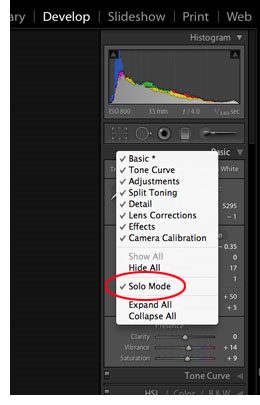
One thing bugged me, though. I didn’t like the way the panels would stack up when toggled open causing you to have to endlessly scroll up and down to get to the various functions. Then I found out about Solo Mode and it changed everything. With Solo Mode turned on, only one panel is open at a time. The previous panel collapses when you open a new one. A small thing, but it was probably one of the more significant factors in winning me over to the Lightroom workflow. Previously Bridges tabbed-panel system had been more comfortable for me. Clicking a tab moved it forward, hiding the previous panel behind. Bridge was in Solo Mode all along.

100730solomodeWhen I switched to my new Mac last month and installed Lightroom 3, I did a clean install and didn’t install over Lightroom 2. Therefore, my preferences weren’t picked up. No biggie, I wanted a clean start, but I couldn’t for the life of me find how to turn on Solo Mode again. After some googling, I found the answer. For some reason Solo Mode is not made obvious in any of the main, top menus — instead, you have to control-click (I assume right-click on a PC) on one of the panel headers to get the pop-up menu. There you can select which panels are visible, or — hallelujah — turn on Solo Mode. Someone correct me if I’m wrong, but I think this is the only way to get to this feature.
Like I said, it’s a small thing but it makes all the difference for me in my workflow to only have the one panel open at a time. Sure, I have to click the header of the panel that I want to use next to open it, but for me it’s significantly quicker than scrolling through a bunch of open panels.

Note to Adobe: can’t you put Solo Mode under the Windows > Screen Mode menu? That would make sense to me.

Breathing new life

100723bridgepan_sotc

With my recent investment in new hardware and software updates, I’m finally making a real time-investment in putting together my master Lightroom catalog. When I first went digital (after dabbling for a while, I made the serious switch in 2003), I archived all of my RAW files to DVD. Everything that wasn’t ridiculously hopeless got archived. Then I made my tweaks to the best shots and archived those, provided them to stock agencies, etc. My file names are chronological so the only real way of finding things was by searching by the date of the shoot. That, and I had a crude Extensis Portfolio database that provided thumbnails of all of my images and their pathnames, which showed which DVD they were stored on.

That was my system until a year or two ago when I began to migrate to using Adobe Lightroom as my main image cataloging system. I believe it was my trip to China in late 2008 when I began processing everything through Lightroom instead of Bridge and ACR. Everything from that point forward was in Lightroom, but everything prior was still in my old non-system.

Now, as I have downtime between shoots, I’m making the effort to add my digital files from 2003-2008 to my master catalog in Lightroom. After that is done, I’ll need to address my scans from transparencies that predate 2003, but that’s another kettle of fish.

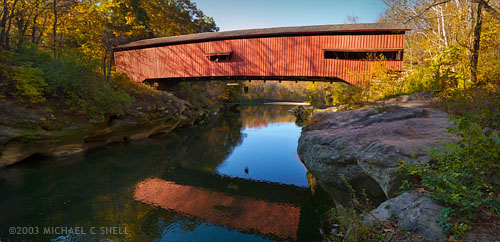
The beauty of re-processing some of these older images is that they can often be improved by the advances made in RAW processing software in the intervening years. The shot at the top of this post is one example. Shot in the fall of 2003 while working on a story about Indiana’s covered bridges, this was originally three vertical shots. The plan was to use them to make a panorama in Photoshop, but it was a time-consuming task at the time.

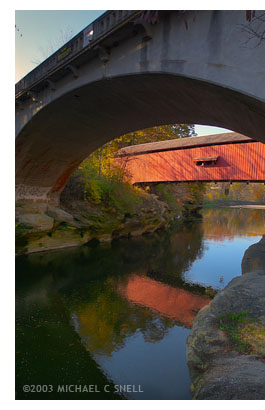
100723bridge_sotcHere was the situation: This particular covered bridge was located right next to a newer, concrete bridge that replaced it. They were so close together that I couldn’t get the whole bridge in frame with my 17mm lens because there was no room to back up. This photo of the two bridges gives you some idea of the setting.
So, I did what I could do. I backed up under the concrete bridge until it was just out of view. Then I fired off three vertical shots from left to right, making sure I had plenty of overlap along their common edges. I planned at the time to eventually stitch these three photos into a panorama, but I knew it would take some time to correct the wide angle distortion, mask the overlapping edges and tweak the sky and water to get a seamless blend. I set them aside for later.

“Later” came when I imported this shoot into my new Lightroom catalog last week. Seven years have passed and now stitching a panorama is automated. In Lightroom, you can select the three images and go under the Photo menu to Edit In > Merge to Panorama in Photoshop. The software takes it from there and you end up with a seamlessly blended, distortion corrected panorama in no time. Now I have one more covered bridge shot in my library.

Many other tools have been improved in the last seven years and I’ll share some other salvaged photos as I move through the files. It seems like Adobe’s image editing suite has arrived to a point where I can be comfortable making this kind of a huge time commitment to cataloging my images now, without having much worry that I’ll regret taking this path a year or two down the road. Sure, I expect things to continue to improve, but the overall system now feels mature enough to move ahead with confidence that time isn’t being wasted. That’s a good feeling.

Next up: a couple of small things that aren’t completely obvious in Lightroom that make life much easier…

Google maps to the rescue for keywording

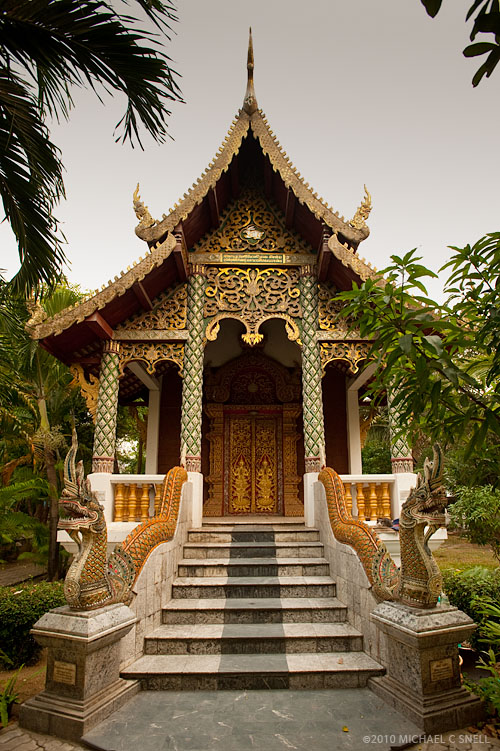
100619wat_sotc

I’ve been meaning to write this post for a long time. While finishing up the keywording of my Thailand files in the last couple of weeks, I ran across a good example of what I’ve been wanting to discuss, and that is: how I use Google Maps to help me identify my images.

Of course, taking notes on site is always the best practice. I carry a small notebook in my camera bag but, in truth, I tend to take most of my notes with the camera itself. Here’s an example: on my last day in Chiang Mai, I had a few hours in the morning to stroll the old city on my own and photograph the various Wats, Chedis and Prayer Halls. I had heard that Chiang Mai has over 1000 Wats so, suffice it to say, it’s important to keep track of which is which when it comes time to keyword and label for my stock agencies.

I set out from the hotel before dawn and headed for the original, walled city. Once inside the walls, I would pass a small temple complex nearly every half a block. While I had been driven through these streets regularly for three days, I never would have seen many of these buildings without being on foot. They are tucked away and need to be sought out.

When I would begin to shoot a temple site, I would first look for a sign with the name in english and photograph that first. This is my way of taking notes. The images can always be sorted by capture time and I’ll have an “opening title” for each location I visited. Hopefully it will even be spelled correctly, but, you never know.

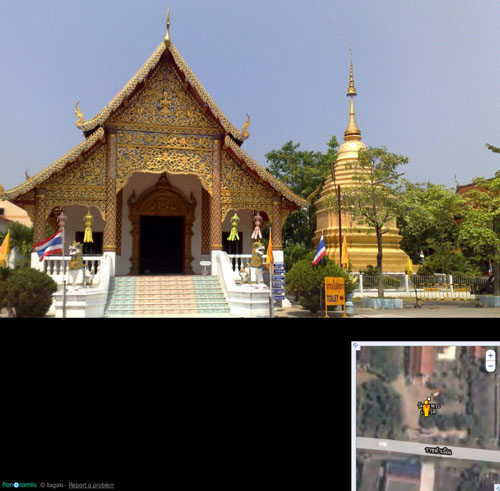
When I arrived at the Wat at the top of this post, I couldn’t find a sign in english anywhere. Nor was there anyone around that could tell me what it was save for a group of monks (who I opted not to bother), chanting inside this main building:

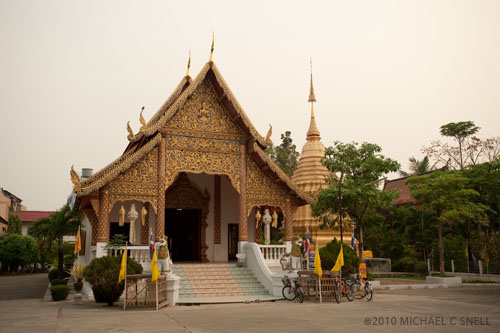
100620chedi_sotc

The site was a monastery comprised of a viharn (the building in the foreground), a chedi (the gold spire behind it) and a ubosot (the roof seen peeking over the trees in the back on the right). The english terms for these might be an assembly hall, a reliquary, and a prayer room or ordination hall. The ubosot, or prayer room, is what is pictured in the opening photo.

As it turned out, I never had the opportunity to speak with my local guide again and I continued on my way to Bangkok. Once back in the office at home, I could have tried to contact him by email but decided to do some detective work on my own first. This is where Google Maps comes in.

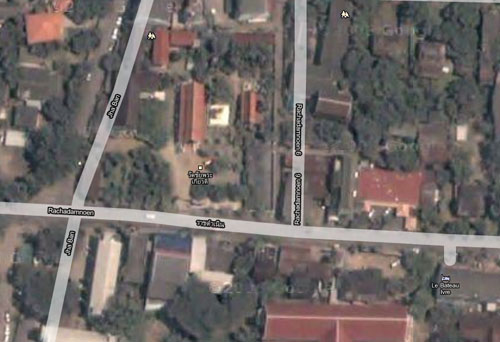
I knew the route that I had walked through the walled city, and I knew from signage, what the names were of the Wats on either side were. I zoomed in close in this area with Google Maps and switched to the satellite image view. There was my Wat:

100620map

You can see the shiny gold chedi in between the two red-roofed buildings just above and to the left of center in this screen capture. There is a label, but it’s in Thai. I tried using an online translator but didn’t trust it so I tried using Google’s street level viewer in Google Maps. That’s the tool shaped like a little man. While the area had not been mapped for street level views, the tool did show several blue dots for the positions of still images that were on file for the site. Sure enough, by looking at some of these images, I was able to confirm that this was the Wat I was looking for and that it was named Wat Chai Phra Kiat, or Monastery of the Renowned Victory.

100620streetview

That’s the image that convinced me. Still, just to be safe, I Googled the name and found several other sites that confirmed it was what I was looking for and provided me with some alternate spellings.

The internet has been one of my most valuable tools for researching images and compiling keywords. I would hate to imagine the time it would take to track sites like this down through books, emails to local guides, etc. I still do my best to identify sites while I’m on location — there’s no substitute for that — but at least in situations like this, I can feel confident that I can come up with the information later when necessary.