Category Archives: technique

Altes Rathaus

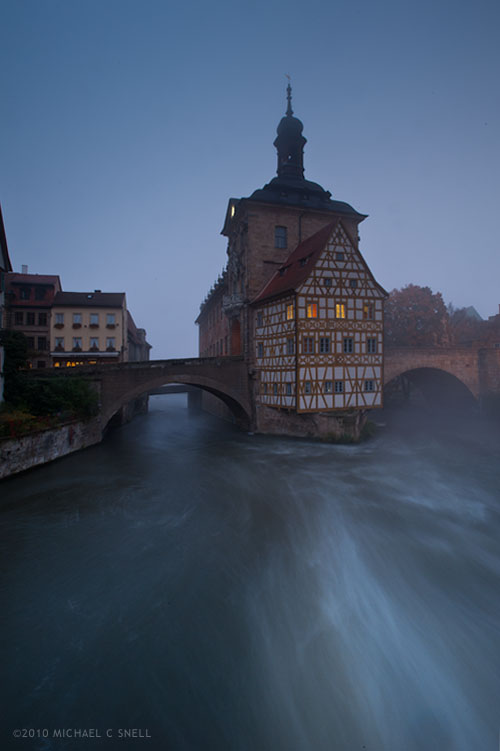
As soon as I saw the 14th century old town hall — the Altes Rathaus — built in the middle of the river Regnitz in Bamberg, Germany, I knew I needed to dedicate some time to shooting it. Unfortunately, I was leaving the next morning at 8:00 am. It’s okay, I thought, I‘ll get there before sunrise and shoot some long exposures with the tripod before it gets too light out and be back in time to check out of the hotel and catch my ride to Regensburg. I rose very early the next morning and looked out the window to thick fog drifting past the streetlights. Not such bad news — I love fog — I just hoped I could see the town hall from the footbridge I had scoped out on the map the night before.

I packed up so that I’d be able to leave the hotel quickly after my shoot and headed out into the mist with my tripod over my shoulder. Through the winding streets, I eventually found the river and the footbridge. It was foggy, no doubt, but it was lifting. There was just enough left to give a nice mood. It was still quite dark out but I added a neutral density filter anyway. I wanted to cut out even more light in order to extend the length of my exposure to let the water blur and give some sense of motion. The rivers run fast in this part of the world and I wanted to convey that.
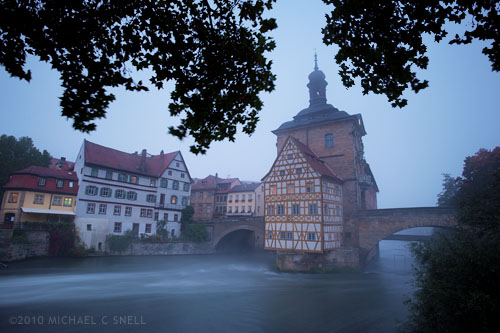
The footbridge had a little bounce to it and I had to time my shots between the locals crossing on bicycles so that the vibrations wouldn’t blur my shots. Once I had a few variations I was comfortable with, I set off to find other vantage points. I had little time but wanted to make the most of it. There are a whole series of bridges crossing the river in this area and I zig-zagged my way back and forth down the river shooting from each of them.

I left myself a little time so that I could continue to shoot a few things on the walk back to the hotel. This is one of my favorite times of the day when traveling. It’s when you get to experience the real town. People sweeping the sidewalks outside their shops, others walking to school or work, everyone just going about their day. The tourists haven’t arrived yet so the place is still real.
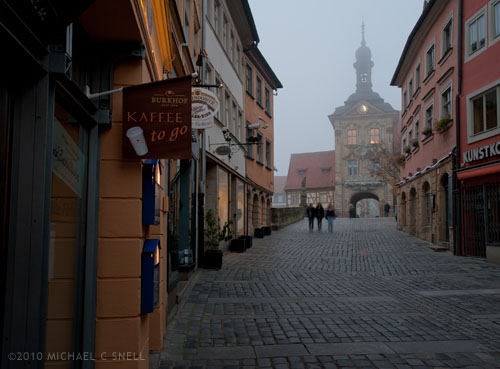
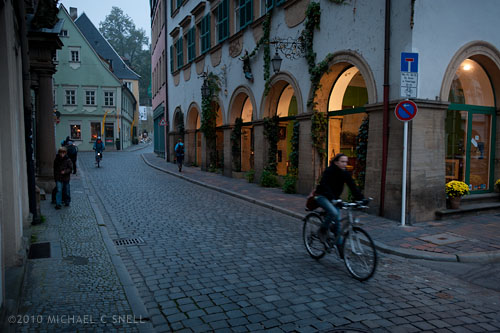
I don’t know if these shots will ever sell — sunny skies often have a better chance — but they are among my favorites from my trip to Germany because it was one of my favorite mornings. Off on my own watching a strange city come to life, the weather crisp and cool — it doesn’t get much better than that.
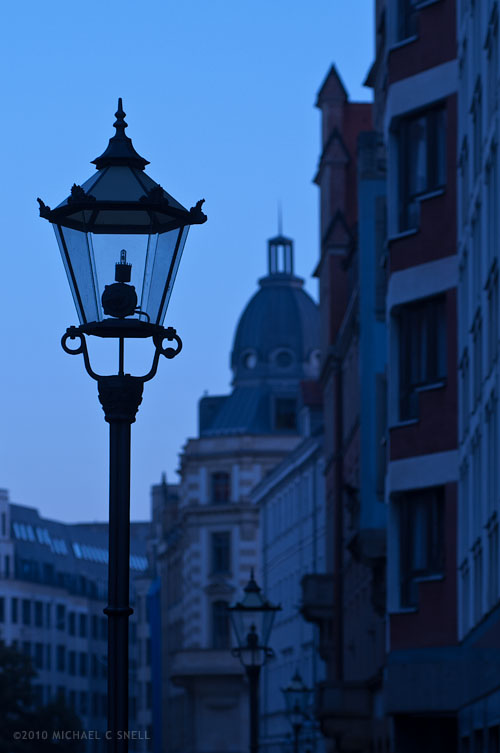
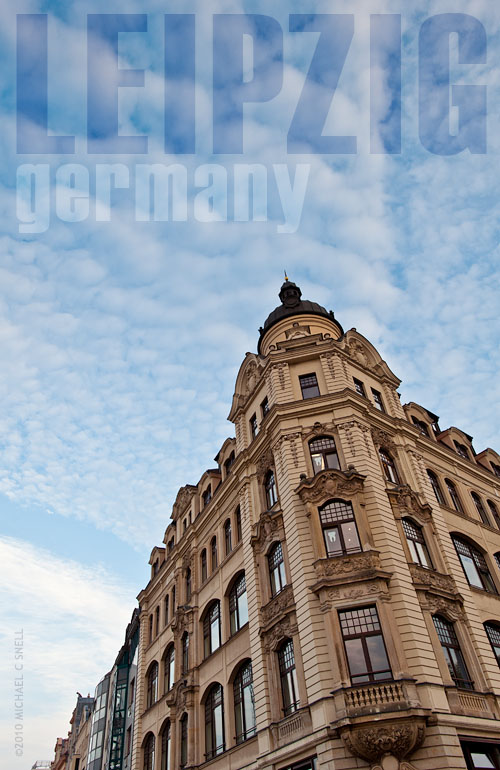
Leipzig in blue

On an early morning walk through the old city of Leipzig, the light was a tad underwhelming. A little overcast and cool in color temperature, my inclination was to warm up the white balance of my Nikons to correct the color to a more pleasing tone. I almost always leave white balance set on cloudy for just this reason. I tend to like the warmer color cast for tourism shots. Back home and looking over the images on the computer screen, however, I found myself second-guessing that decision in this case. This photo didn’t respond very well to the warming and there were some distracting color combinations in the distant buildings that just didn’t come together. I decided to go against my natural tendencies and try a cooler color temperature to enhance the blueness that the scene had naturally and give more of the feeling of that early morning hour. I think it worked. The color pallet is more monochromatic and cohesive. The mood is stronger.

Digital provides so much flexibility in cases like this. I love having the ability to continue to experiment and play rather than having all my decisions set in stone once the initial film choice, exposure settings and filter selections are made on location. It’s a power that shouldn’t be abused, however. I don’t want to push things to a point that they no longer represent the actual scene — at least not for journalistic stock — but having the ability to tweak my on-site choices later, when I’m not pressured for time by changing light and other locational obstacles, is a great thing.

Do I wish that the street lamps had been on? Absolutely. But I stopped myself short of adding a lens flare in Photoshop. You have to draw the line somewhere.

Leaving room for type

One side-effect of my background in graphic design is that I tend to compose images with an art director in mind. When I compose a shot, I’m often leaving room for typography. I suppose if you looked at my photos assuming that I were a fine art photographer, you might think that my compositions are sometimes strange — sometimes leaving large spaces empty — but that’s intentional. A vertical with some empty space at the top makes for a great magazine cover. The title needs to read clearly on the shelf and a busy background can create confusion. A horizontal shot with an open space to one side and an off-center subject can make a nice opening spread. The magazine’s gutter won’t cut directly through the subject and the open space can be used for a headline or the opening paragraphs of the story. Other shots fill the frame but may be graphically simple so that they will hold up at small sizes. Perfect for small “spot” uses to brighten copy-filled pages.

I’m not a fine art photographer. I do sell some prints, but I’m primarily composing with an editorial use in mind. Having been on the other side as an art director with travel and tourism clients, I think back to the images that I would have liked to find when it was me that was laying out that story, or me designing that cover. It’s always interesting to see how other art directors use my images as well. Sometimes I’m amazed that they saw a way of using one of my photos that I would never have thought of. Hopefully, I amaze them every now and then as well.

Lake Superior, North Shore

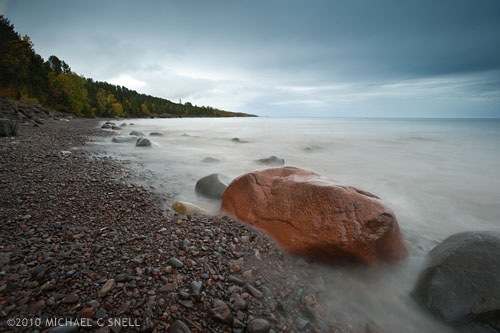
After a couple of assignments in the Minneapolis/St. Paul area, I’ve been working my way up the North Shore of Lake Superior looking for Fall color. It’s here alright, but the weather has been less than cooperative. Heavy rains and high winds are making photography difficult and are threatening to strip the leaves away. There have been breaks, however, and I’ve been making the most of them. The rains have the waterfalls running nice and heavy so I’ve been concentrating on shooting those and the breaking waves on the shore as seen above. I’ve made use of the overcast skies and dim light in both instances to get some slow shutter speeds to blur the water and make it nice and silky. To extend those shutter speeds further, I’ve also been using neutral density filters stacked with a polarizer and I’ve been bumping the ISO artificially down to 100 (200 is the lowest “real” ISO on the D700). In the shot shown above, I even added a graduated neutral density filter to the sky to help balance the exposure.

Shooting through all of these filters is a bit like shooting through welder’s glass but it’s doing the job. This shot was made at f/22 and resulted in a 4 second exposure. The waves crashing around the large rocks look almost like fog.

Tomorrow is supposed to be a little dryer but still cloudy. Sounds good to me. At least I’ll have both hands available for adjusting the tripod again. One was constantly holding an umbrella today.

Lightroom 3: noise reduction

100911candles_sotc

In 2006 I was in Santiago Chile shooting with my new-ish Nikon D200 and I found myself in the dark interior of a 400 year old church. It seemed like the ideal time to play around with the improved high-ISO capabilities of that camera. Back in the film days, I used to shoot with Fuji Velvia that I rated at ISO 40 nearly all the time. I did everything I could to avoid film grain and stepping up to an ISO 100 film was almost extreme for me. As I recall, my D100’s lowest ISO was 200 and it seemed really extravagant at the time to have all that headroom. I rarely moved off of 200, though, as the noise would creep in at 400 and especially noticeably by 800. The D200 had a lower minimum ISO of 100 and felt more in my comfort zone but there were tantalizing reports that it even gave good results at ISOs of 1600 and higher. Each successive body I’ve owned has improved even further but I still tend to stay at minimum ISOs as much as possible. Old habits I suppose, but I just don’t like the look of digital noise at higher ISOs and I like my RAW files to start out as clean as possible.

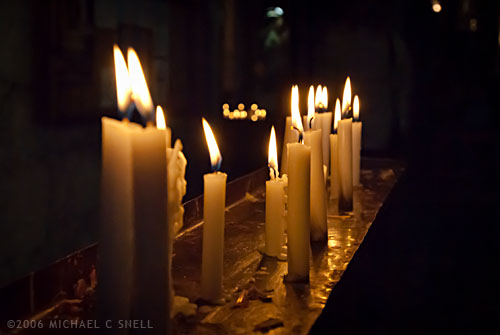
But back to that church — I didn’t have a tripod with me so I decided to experiment with higher ISOs to at least be able to capture something in that dark, candlelit interior. This shot of the candles themselves was taken at ISO 1600. It was a decent image when I processed it at the time, but there was some noise. I didn’t think much more about it until I was importing my Chile shoot into Lightroom 3 over the last couple of weeks and I decided to give the new noise reduction controls a test.

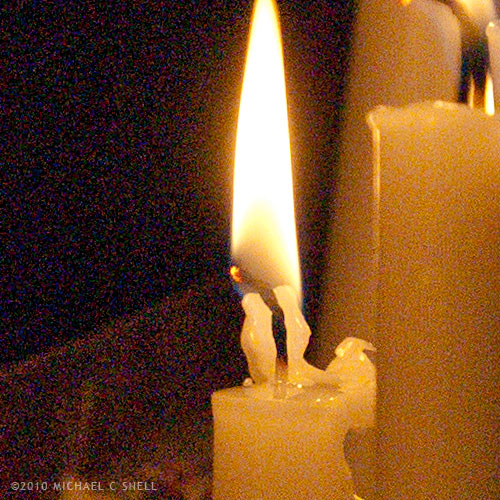
Here’s a crop at 100% of the image with noise reduction off:

100911noise_off_sotc

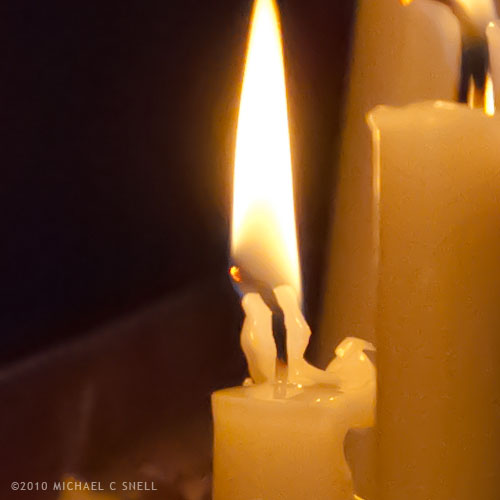
And, to keep these side-by-side in the post, here’s a crop with it on (I’ll explain more after the image):

100911noise_on_sotc

I’ll be the first to admit that this is not a true, scientific test. To be honest, I could have had a better result than that first crop four years ago if I had applied the noise reduction tools that were available at the time. What’s more, I’ve actually increased the noise issue a bit due to some exposure compensations that I’ve made in Lightroom. The idea here is just to show how much noise was in the RAW file, and how much Lightroom 3 was able to remove.

I’ve also really cranked up the noise reduction in Lightroom on the second shot. It’s more heavy-handed that I would typically use but, again, I wanted to kick the tires and see what she’d do. Luminance is maxed out at 100 in that second crop.

Is it perfect? No. There’s a bit of a painterly quality to the gradations, but it’s pretty amazing. You could continue to tweak the settings and maybe even add just a touch of LR3’s new Film Grain to disguise some of those gradation artifacts but, as a quick-and-dirty test, I’m impressed by the possibilities. I’m sure I’ll still stay in the low end of the ISO range 95% of the time, but I certainly won’t let dark conditions prevent me from shooting anymore. It’s comforting to know that even if the results aren’t great now, in four years your tools may improve to the point where you can salvage those images.

And if you’re wondering why I would add film grain after trying so hard to disguise high-ISO noise, it does seem counterproductive but it’s a technique I’ve used for years to disguise areas of retouching. Sometimes you’ll need to add a gradation to a sky or something of that nature and the retouched area looks smoother and more noiseless than the rest of the image, calling attention to your efforts. Adding a little noise or grain will unify the original image and the retouch and make everything blend. In small doses, that added grain never shows up on output. Maybe that will be the subject of a future post…

Lightroom 3: perspective correction

100705correctedandcrop_sotc

The new lens correction tools in Lightroom 3 bring perspective correction to the RAW workflow. Previously, I’ve had to go into Photoshop to make these corrections, but now they can be done right inside of Lightroom, which saves a few steps. However, I still prefer the Photoshop controls over those in Lightroom. I’ll try and explain why…

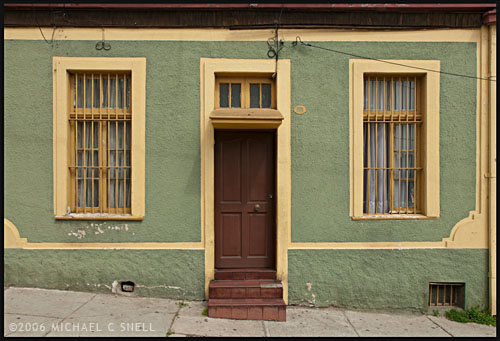
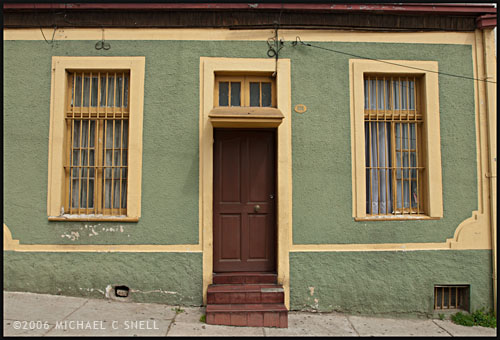
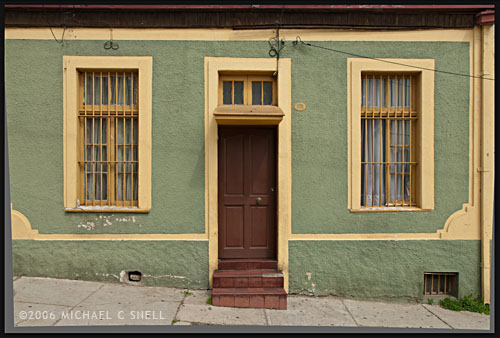
The image at the top of this post is the image after correction in Lightroom. Here’s the original image:

100705uncorrected_sotc

You’ll notice that the windows are tilting in toward the center of the frame — it’s perhaps most noticeable on the far right side where the edge of the building is leaning in as well. I take a lot of these kinds of shots and do my best in the field to keep everything straight in-camera, but sometimes you’re in a tight spot. Shooting wide and looking slightly up… you’ll get this kind of distracting distortion. A tilt-shift lens or a camera with bellows would take care of the problem, but you don’t always have that option available so it’s nice to be able to solve this issue via software.

In Lightroom, you have a pair of sliders for vertical and horizontal correction. Moving these sliders creates an effect similar to tilting a print in your hands side-to-side or up-and-down. If you ever controlled perspective shifts like this in the darkroom by tilting your easel, you’ll be familiar with the effect. It works reasonably well but it’s a little like a funhouse mirror and any large movements introduce some strange, new distortions. In the end, you have something that looks like this:

100705correctednotcrop_sotc

The vertical and horizontal lines are now straight (except for the sidewalk which, in the case, actually did run downhill like that) but you’ll notice that we now have grey “background” showing on the bottoms and sides of the images. Lightroom makes its perspective corrections inside the frame so you end up with an image that is smaller than the canvas size, to use Photoshop terms. You need to crop the image down to get rid of these grey wedges. Not difficult, but another step.

I’ll use this method a lot I’m sure. It’s really convenient to have this ability inside Lightroom. However, my preferred method of perspective correction is still part of Photoshop: the Distort control under Edit > Transform.

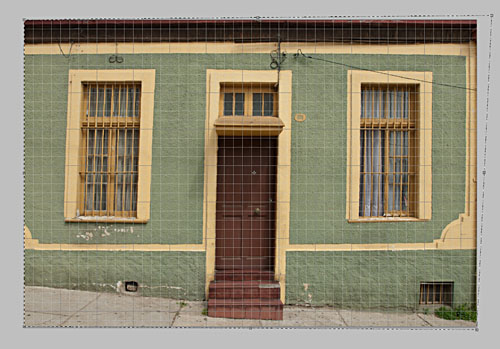
I turn on the grid in Photoshop first, to better see where things are skewed. Then, Select All and you’ll get corner handles on your image. It’s best to be zoomed out so that you can see some free space around the border of your image. By clicking and dragging these corner handles, you can stretch the image into alignment with the guides:

100705pscorrection_sotc

You can see the top-right handle has been pulled beyond the image frame here, eliminating the left-tilt of the right side of the building. The image will not show beyond the edge of the frame but the data is still there if you drag the corner point back. This gives you a live preview of what the final, cropped image will look like. Better yet, we’re making this correction to the outside of the frame so that there is no need to crop the image afterward. The perspective correction and crop are being handled simultaneously and there is no chance of an edge artifact getting left in your final file.

There is a Perspective control in the Transform group as well, but I generally prefer Distort. The reason is that Perspective tilts the image plane like Lightroom does — symmetrically. If I tug the right side out, the left side will move correspondingly. With Distort, each point moves individually — move the top right handle and only the top right corner distorts. I find this much more useful because the corrections I need to make are not always symmetrical.

Lightroom has a good set of correction tools — there are rotate and pincushion corrections there as well — but I’m glad to have the ability to go to Photoshop to fine tune images when needed. If I can do 90% of the image correction I need in Lightroom, I’m happy to jump over to Photoshop for the last 10%. No tool can do everything. When they try, they get incredibly bloated. Honestly, I kind of hope that Lightroom never adopts layers, etc. Keep it simple and I’ll go to Photoshop when necessary. The two programs work very well together.

Hotel shot, take two

100731eldridge_sotc

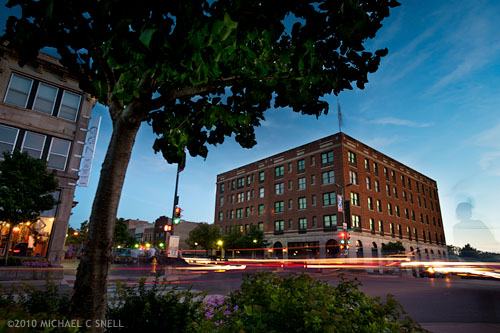
I returned to the Eldridge Hotel for another twilight shoot last night. You may remember a recent post where I shot it from a rooftop across this street. This time I went street-level and parked myself under a tree along the sidewalk catty-corner from the hotel. I was again going for a long exposure with some traffic streaking and a combination of the dying light in the sky and the warm street lights.

I’m discovering that this particular building is not lit very well, nor do there seem to be many lights on in the windows in the early evening. My solution has been to merge several shots together. The image above was a quick attempt this morning to see how it might look, but I’ll need to do a more involved layering later. While I was locked down on a tripod, I was also changing apertures. The differing depth of field between shots means that I need to mask out some areas to preserve the focus where I want it. Otherwise I end up with ghostly halos around the foreground elements.

The advantage I gain by using multiple shots is that I can use one as the base image — here I’ve chosen a later shot with a good sky — and then “paint in” elements from other shots. One example is using a shot taken earlier in the evening where the building itself had more light on it. While it’s nearly silhouetted in the base image, I put the earlier exposure on a layer above, added a black layer mask to hide it entirely, and painted the building back in using white as my foreground color. I could reduce the opacity of the upper layer to better blend it and achieve the level of light that I wanted on the building.

Another advantage was that I could get more traffic streaks than what actually appeared in any one photo. I picked dark shots from my bracketing that had good headlight and taillight streaks, stacked them on layers above the base image and set those layers to “lighten” in the layer mode menu. That made only the areas that were lighter than the base image visible — in this case, the light streaks.

Headlights from the street to my left would also occasionally throw some light into the leaves of the tree above me. I was also able to paint in some detail there using the same technique as I used on the light streaks.

The downside of this kind of shoot is that I’m tied to one position for about an hour. I usually move around and find different angles, trying to make the most of the light as it changes and fades. Here, I need to dedicate myself to one angle and stick with it in order to have all the layers I need for the final product. Last night the sky was surprisingly dramatic for a short period in the middle of this sequence an I regretted positioning that tree where it hid the sky but I was committed to stay put in order to keep all of the images registered. Since this is a local shot for me, it’s not such a bad thing. I’ll just keep going back and trying different things.

Breathing new life

100723bridgepan_sotc

With my recent investment in new hardware and software updates, I’m finally making a real time-investment in putting together my master Lightroom catalog. When I first went digital (after dabbling for a while, I made the serious switch in 2003), I archived all of my RAW files to DVD. Everything that wasn’t ridiculously hopeless got archived. Then I made my tweaks to the best shots and archived those, provided them to stock agencies, etc. My file names are chronological so the only real way of finding things was by searching by the date of the shoot. That, and I had a crude Extensis Portfolio database that provided thumbnails of all of my images and their pathnames, which showed which DVD they were stored on.

That was my system until a year or two ago when I began to migrate to using Adobe Lightroom as my main image cataloging system. I believe it was my trip to China in late 2008 when I began processing everything through Lightroom instead of Bridge and ACR. Everything from that point forward was in Lightroom, but everything prior was still in my old non-system.

Now, as I have downtime between shoots, I’m making the effort to add my digital files from 2003-2008 to my master catalog in Lightroom. After that is done, I’ll need to address my scans from transparencies that predate 2003, but that’s another kettle of fish.

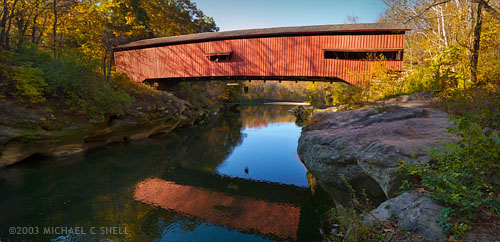
The beauty of re-processing some of these older images is that they can often be improved by the advances made in RAW processing software in the intervening years. The shot at the top of this post is one example. Shot in the fall of 2003 while working on a story about Indiana’s covered bridges, this was originally three vertical shots. The plan was to use them to make a panorama in Photoshop, but it was a time-consuming task at the time.

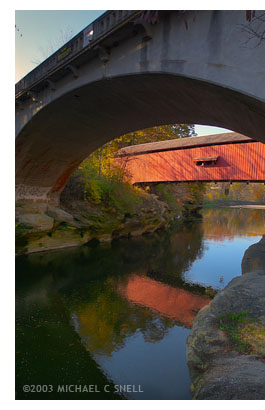
100723bridge_sotcHere was the situation: This particular covered bridge was located right next to a newer, concrete bridge that replaced it. They were so close together that I couldn’t get the whole bridge in frame with my 17mm lens because there was no room to back up. This photo of the two bridges gives you some idea of the setting.
So, I did what I could do. I backed up under the concrete bridge until it was just out of view. Then I fired off three vertical shots from left to right, making sure I had plenty of overlap along their common edges. I planned at the time to eventually stitch these three photos into a panorama, but I knew it would take some time to correct the wide angle distortion, mask the overlapping edges and tweak the sky and water to get a seamless blend. I set them aside for later.

“Later” came when I imported this shoot into my new Lightroom catalog last week. Seven years have passed and now stitching a panorama is automated. In Lightroom, you can select the three images and go under the Photo menu to Edit In > Merge to Panorama in Photoshop. The software takes it from there and you end up with a seamlessly blended, distortion corrected panorama in no time. Now I have one more covered bridge shot in my library.

Many other tools have been improved in the last seven years and I’ll share some other salvaged photos as I move through the files. It seems like Adobe’s image editing suite has arrived to a point where I can be comfortable making this kind of a huge time commitment to cataloging my images now, without having much worry that I’ll regret taking this path a year or two down the road. Sure, I expect things to continue to improve, but the overall system now feels mature enough to move ahead with confidence that time isn’t being wasted. That’s a good feeling.

Next up: a couple of small things that aren’t completely obvious in Lightroom that make life much easier…

Shooting local

100716campus_sotc

An assignment in my own home town has spurred a new personal project. When I moved to Lawrence, Kansas, a couple of years ago (has it been that long already?) I had intended to begin documenting the town photographically. While it seems like shooting in your own “back yard” would be the easiest thing in the world, it’s amazing how hard it can be to actually get out and do it. It’s too easy to get distracted by work, or mowing the lawn, or just plain every day life. When I’m on the road, I’m there to shoot and nothing else so it’s easy to stay focused. Even if the weather isn’t perfect, I’m out shooting because I only have limited time on location. When I’m home, it’s easy to say “maybe the light will be better tomorrow night”.

But nothing kicks me into action like a paying gig so, when an assignment came along for a story on some local civil war sites, it finally got me out of the house. First stop: the Eldridge hotel.

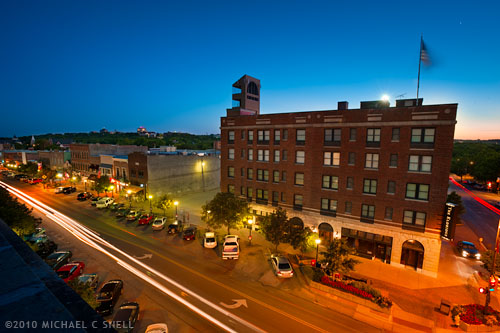
The Eldridge was burned down on multiple occasions during the years leading up to the civil war by pro-slavery raiders. Rebuilt each time, it is now a local landmark. I wanted a new angle so I contacted my friend, Doug, who offices across the street to see if he could get me on the roof. Being the great guy that he is, he did just that.

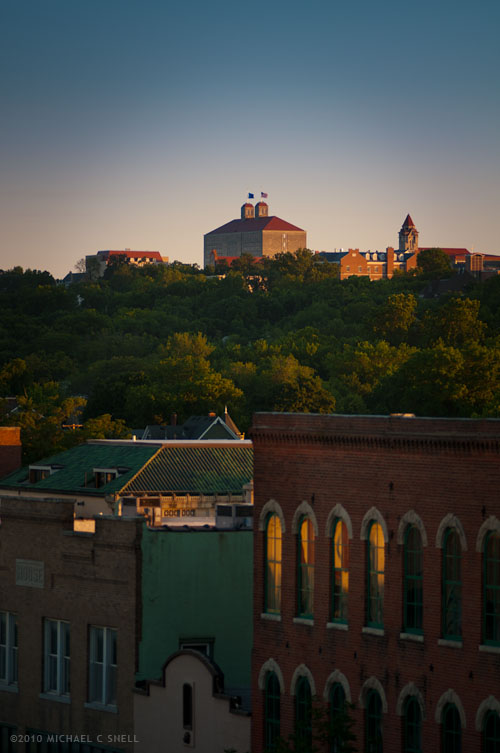
After popping off a few exposures of the KU campus (above) I settled into the shot I had in mind for the Eldridge. I wanted a long twilight exposure that mixed the sunset with the street lights below. I framed it up on the tripod and attached the release cord. Then it was just a matter of firing off a few shots every few minutes as the light faded and the shop lights came on.

In the end, I combined a few shots to get this one:

100716eldridge_sotc

Since I had shot several variations while locked down on the tripod, I could easily stack different exposures on layers and “paint in” elements of each using layer masks. The bulk of this image is one shot, from late in the set where the sky was darkest, but I did paint in some of the facade of the hotel from a shot prior to sunset to give more detail and balance the contrast a bit. I also painted in a few people on the sidewalk that appeared in various exposures.

I’m going to keep exploring other angles for this shot. The microwave tower behind the hotel is distracting (I could Photoshop it out but not for an editorial shoot – darn those ethics) and I would rather be on an angle with the hotel to add some dimension to it. Next time I’ll try shooting from street level, diagonally across from the building and see how that works.

It’s nice to have plenty of time for this project. Unfortunately, I can’t always spend so much time on each shot but, in this case, I’m looking at the assignment as an excuse to do some work I’d wanted to be doing for myself anyway. And it all goes into the stock files eventually.

Google maps to the rescue for keywording

100619wat_sotc

I’ve been meaning to write this post for a long time. While finishing up the keywording of my Thailand files in the last couple of weeks, I ran across a good example of what I’ve been wanting to discuss, and that is: how I use Google Maps to help me identify my images.

Of course, taking notes on site is always the best practice. I carry a small notebook in my camera bag but, in truth, I tend to take most of my notes with the camera itself. Here’s an example: on my last day in Chiang Mai, I had a few hours in the morning to stroll the old city on my own and photograph the various Wats, Chedis and Prayer Halls. I had heard that Chiang Mai has over 1000 Wats so, suffice it to say, it’s important to keep track of which is which when it comes time to keyword and label for my stock agencies.

I set out from the hotel before dawn and headed for the original, walled city. Once inside the walls, I would pass a small temple complex nearly every half a block. While I had been driven through these streets regularly for three days, I never would have seen many of these buildings without being on foot. They are tucked away and need to be sought out.

When I would begin to shoot a temple site, I would first look for a sign with the name in english and photograph that first. This is my way of taking notes. The images can always be sorted by capture time and I’ll have an “opening title” for each location I visited. Hopefully it will even be spelled correctly, but, you never know.

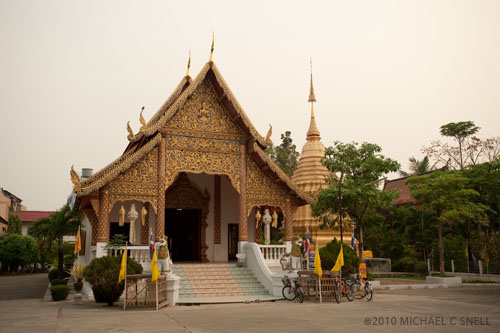
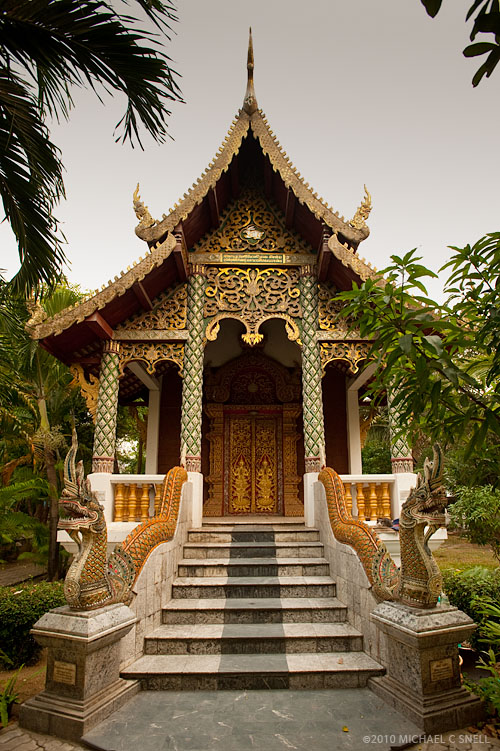
When I arrived at the Wat at the top of this post, I couldn’t find a sign in english anywhere. Nor was there anyone around that could tell me what it was save for a group of monks (who I opted not to bother), chanting inside this main building:

100620chedi_sotc

The site was a monastery comprised of a viharn (the building in the foreground), a chedi (the gold spire behind it) and a ubosot (the roof seen peeking over the trees in the back on the right). The english terms for these might be an assembly hall, a reliquary, and a prayer room or ordination hall. The ubosot, or prayer room, is what is pictured in the opening photo.

As it turned out, I never had the opportunity to speak with my local guide again and I continued on my way to Bangkok. Once back in the office at home, I could have tried to contact him by email but decided to do some detective work on my own first. This is where Google Maps comes in.

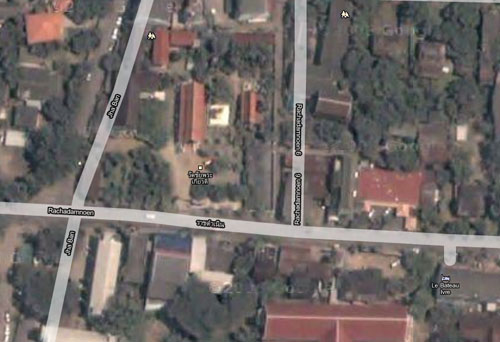
I knew the route that I had walked through the walled city, and I knew from signage, what the names were of the Wats on either side were. I zoomed in close in this area with Google Maps and switched to the satellite image view. There was my Wat:

100620map

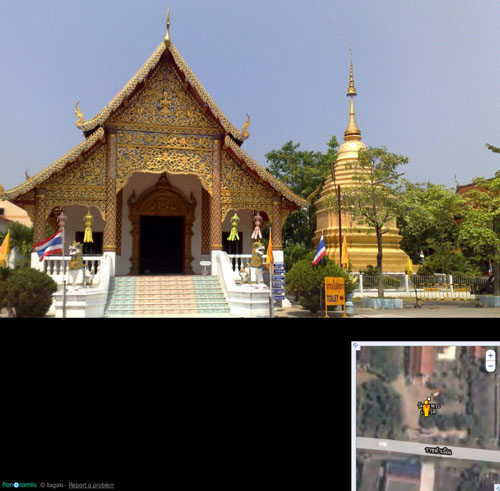
You can see the shiny gold chedi in between the two red-roofed buildings just above and to the left of center in this screen capture. There is a label, but it’s in Thai. I tried using an online translator but didn’t trust it so I tried using Google’s street level viewer in Google Maps. That’s the tool shaped like a little man. While the area had not been mapped for street level views, the tool did show several blue dots for the positions of still images that were on file for the site. Sure enough, by looking at some of these images, I was able to confirm that this was the Wat I was looking for and that it was named Wat Chai Phra Kiat, or Monastery of the Renowned Victory.

100620streetview

That’s the image that convinced me. Still, just to be safe, I Googled the name and found several other sites that confirmed it was what I was looking for and provided me with some alternate spellings.

The internet has been one of my most valuable tools for researching images and compiling keywords. I would hate to imagine the time it would take to track sites like this down through books, emails to local guides, etc. I still do my best to identify sites while I’m on location — there’s no substitute for that — but at least in situations like this, I can feel confident that I can come up with the information later when necessary.