Author Archives: Michael

Lightroom 3: noise reduction

100911candles_sotc

In 2006 I was in Santiago Chile shooting with my new-ish Nikon D200 and I found myself in the dark interior of a 400 year old church. It seemed like the ideal time to play around with the improved high-ISO capabilities of that camera. Back in the film days, I used to shoot with Fuji Velvia that I rated at ISO 40 nearly all the time. I did everything I could to avoid film grain and stepping up to an ISO 100 film was almost extreme for me. As I recall, my D100’s lowest ISO was 200 and it seemed really extravagant at the time to have all that headroom. I rarely moved off of 200, though, as the noise would creep in at 400 and especially noticeably by 800. The D200 had a lower minimum ISO of 100 and felt more in my comfort zone but there were tantalizing reports that it even gave good results at ISOs of 1600 and higher. Each successive body I’ve owned has improved even further but I still tend to stay at minimum ISOs as much as possible. Old habits I suppose, but I just don’t like the look of digital noise at higher ISOs and I like my RAW files to start out as clean as possible.

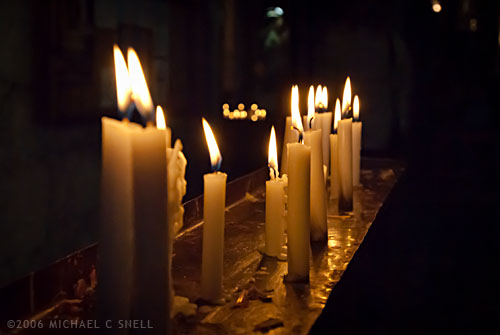
But back to that church — I didn’t have a tripod with me so I decided to experiment with higher ISOs to at least be able to capture something in that dark, candlelit interior. This shot of the candles themselves was taken at ISO 1600. It was a decent image when I processed it at the time, but there was some noise. I didn’t think much more about it until I was importing my Chile shoot into Lightroom 3 over the last couple of weeks and I decided to give the new noise reduction controls a test.

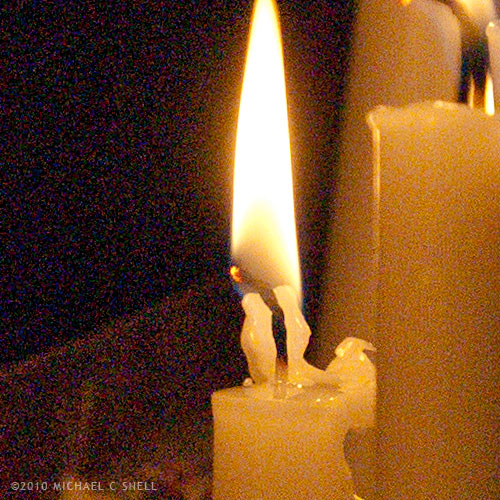
Here’s a crop at 100% of the image with noise reduction off:
100911noise_off_sotc

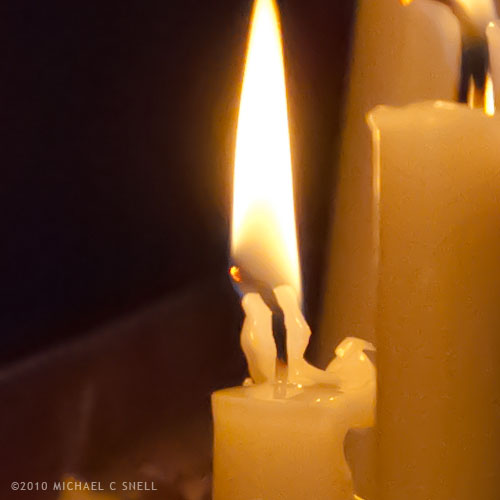
And, to keep these side-by-side in the post, here’s a crop with it on (I’ll explain more after the image):
100911noise_on_sotc

I’ll be the first to admit that this is not a true, scientific test. To be honest, I could have had a better result than that first crop four years ago if I had applied the noise reduction tools that were available at the time. What’s more, I’ve actually increased the noise issue a bit due to some exposure compensations that I’ve made in Lightroom. The idea here is just to show how much noise was in the RAW file, and how much Lightroom 3 was able to remove.

I’ve also really cranked up the noise reduction in Lightroom on the second shot. It’s more heavy-handed that I would typically use but, again, I wanted to kick the tires and see what she’d do. Luminance is maxed out at 100 in that second crop.

Is it perfect? No. There’s a bit of a painterly quality to the gradations, but it’s pretty amazing. You could continue to tweak the settings and maybe even add just a touch of LR3’s new Film Grain to disguise some of those gradation artifacts but, as a quick-and-dirty test, I’m impressed by the possibilities. I’m sure I’ll still stay in the low end of the ISO range 95% of the time, but I certainly won’t let dark conditions prevent me from shooting anymore. It’s comforting to know that even if the results aren’t great now, in four years your tools may improve to the point where you can salvage those images.

And if you’re wondering why I would add film grain after trying so hard to disguise high-ISO noise, it does seem counterproductive but it’s a technique I’ve used for years to disguise areas of retouching. Sometimes you’ll need to add a gradation to a sky or something of that nature and the retouched area looks smoother and more noiseless than the rest of the image, calling attention to your efforts. Adding a little noise or grain will unify the original image and the retouch and make everything blend. In small doses, that added grain never shows up on output. Maybe that will be the subject of a future post…
Lightroom 3: perspective correction

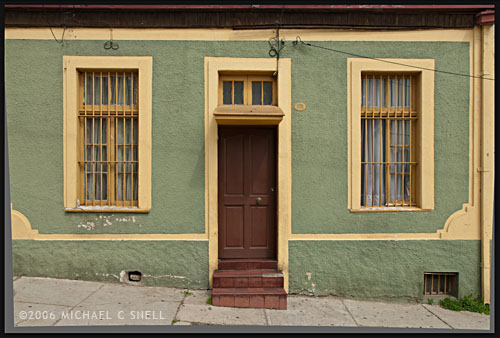
100705correctedandcrop_sotc

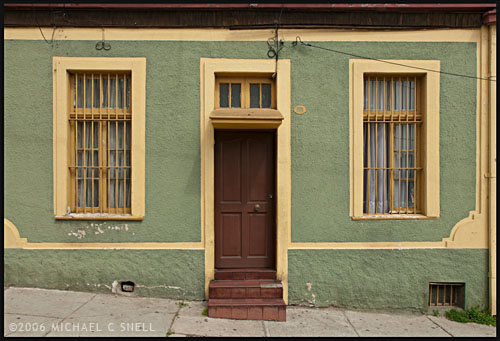
The new lens correction tools in Lightroom 3 bring perspective correction to the RAW workflow. Previously, I’ve had to go into Photoshop to make these corrections, but now they can be done right inside of Lightroom, which saves a few steps. However, I still prefer the Photoshop controls over those in Lightroom. I’ll try and explain why…

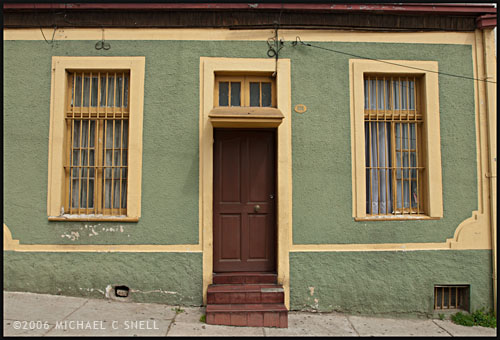
The image at the top of this post is the image after correction in Lightroom. Here’s the original image:

100705uncorrected_sotc

You’ll notice that the windows are tilting in toward the center of the frame — it’s perhaps most noticeable on the far right side where the edge of the building is leaning in as well. I take a lot of these kinds of shots and do my best in the field to keep everything straight in-camera, but sometimes you’re in a tight spot. Shooting wide and looking slightly up… you’ll get this kind of distracting distortion. A tilt-shift lens or a camera with bellows would take care of the problem, but you don’t always have that option available so it’s nice to be able to solve this issue via software.

In Lightroom, you have a pair of sliders for vertical and horizontal correction. Moving these sliders creates an effect similar to tilting a print in your hands side-to-side or up-and-down. If you ever controlled perspective shifts like this in the darkroom by tilting your easel, you’ll be familiar with the effect. It works reasonably well but it’s a little like a funhouse mirror and any large movements introduce some strange, new distortions. In the end, you have something that looks like this:

100705correctednotcrop_sotc

The vertical and horizontal lines are now straight (except for the sidewalk which, in the case, actually did run downhill like that) but you’ll notice that we now have grey “background” showing on the bottoms and sides of the images. Lightroom makes its perspective corrections inside the frame so you end up with an image that is smaller than the canvas size, to use Photoshop terms. You need to crop the image down to get rid of these grey wedges. Not difficult, but another step.

I’ll use this method a lot I’m sure. It’s really convenient to have this ability inside Lightroom. However, my preferred method of perspective correction is still part of Photoshop: the Distort control under Edit > Transform.

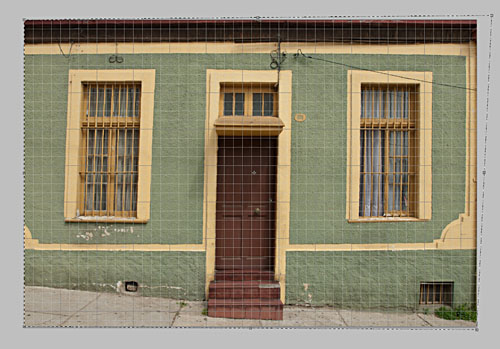
I turn on the grid in Photoshop first, to better see where things are skewed. Then, Select All and you’ll get corner handles on your image. It’s best to be zoomed out so that you can see some free space around the border of your image. By clicking and dragging these corner handles, you can stretch the image into alignment with the guides:

100705pscorrection_sotc

You can see the top-right handle has been pulled beyond the image frame here, eliminating the left-tilt of the right side of the building. The image will not show beyond the edge of the frame but the data is still there if you drag the corner point back. This gives you a live preview of what the final, cropped image will look like. Better yet, we’re making this correction to the outside of the frame so that there is no need to crop the image afterward. The perspective correction and crop are being handled simultaneously and there is no chance of an edge artifact getting left in your final file.

There is a Perspective control in the Transform group as well, but I generally prefer Distort. The reason is that Perspective tilts the image plane like Lightroom does — symmetrically. If I tug the right side out, the left side will move correspondingly. With Distort, each point moves individually — move the top right handle and only the top right corner distorts. I find this much more useful because the corrections I need to make are not always symmetrical.

Lightroom has a good set of correction tools — there are rotate and pincushion corrections there as well — but I’m glad to have the ability to go to Photoshop to fine tune images when needed. If I can do 90% of the image correction I need in Lightroom, I’m happy to jump over to Photoshop for the last 10%. No tool can do everything. When they try, they get incredibly bloated. Honestly, I kind of hope that Lightroom never adopts layers, etc. Keep it simple and I’ll go to Photoshop when necessary. The two programs work very well together.

Lightroom tidbits

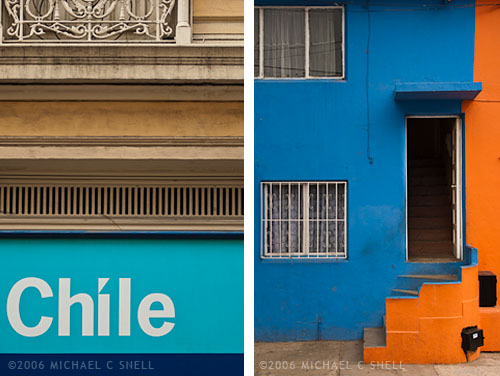
100901chilecolor1_sotc

I’ve been giving Lightroom 3 (now 3.2) a real workout for the last few weeks. I’ve been importing my back catalog in massive chunks and making a quick pass at adjusting the original RAW files rather than importing the images that I had already tweaked previously in Adobe Camera Raw. This is a pretty big-stroke process right now — I’ll come back later and expand keywords and tweak the highly ranked shots — but it’s been a really interesting process to see the images improve. I’d like to think that the improvement is due to my own advancing skills in RAW processing, but the fact is that much of it is really due to improvements to the software over the years. Better processing algorithms and better controls.

I’ve been importing my 2006 images from Chile most recently and have noticed a couple of major advancements. One is Lightroom’s much improved ability to get rid of noise in high-ISO shots. Images that have never seen the light of day will now be going into my stock files because the noise that would never have passed Quality Control is now all but gone. Amazing. I’ll share some examples in the coming posts.

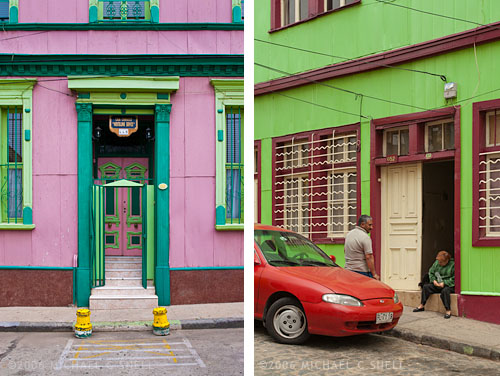
The most noticeable change in the images from Chile, though — especially Valparaiso — is how much more control I have over color now. Valparaiso is a city that is all about color. Colors you never thought you would see together, you’ll see in abundance in Valparaiso. Capturing some of these colors on film would have been frustrating. Sure, Velvia would have made that row of multi-colored row houses really pop. But then you’d round the corner to find a weathered, grey facade with the most subtle hues and you’d be cursing yourself for having 20 more exposures of that super-saturated film in your camera. One of my most favorite things about digital is just that — you can make decisions on a shot-by-shot basis and not be stuck with a film decision you made 10 exposures ago. Did you pop in a roll of ISO 800 film to shoot that dark church interior? Too bad now that you’re out in full sun and all kinds of contrast. No, being able to adjust ISOs and saturation levels for each individual image is a game-changer.

100901chilecolor2_sotc

And that flexibility doesn’t stop with in-camera controls. Lightroom (as well as all other image processors, really) lets you tweak color and contrast in ways that film selection alone never even came close to. The Vibrance slider in the Presence panel has become one of my favorite tools. More subtle than the Saturation slider, it affects the blues and greens more than already-saturated reds and yellows. Very nice. And the sliders for adjusting the hue, brightness and saturation levels of individual colors take that control to another level.

One other set of controls that I find myself using more and more often is the new perspective correction panel — actually the “transform” controls in the lens correction panel. While I still prefer the “distort” controls in Photoshop, it is nice having some of this ability in Lightroom. The controls take some getting used to but they are a welcome addition.

I’ll go into more detail on each of these and other Lightroom features in future posts and show some examples.

The sleeping bear awakes

I’ve decided that I hibernate like a contrary grizzly bear. I make it through the winter months just fine, but when temperatures and humidity levels rise, I fall. I go into some kind of heat coma and become lethargic and without purpose. If I have a task at hand — an assignment or some other critical project — I can pull out of it and operate somewhat normally. But, if left to my own devices and enthusiasm levels, I’m in big trouble.

The last month has been hot. Very, very hot. Temps of up to 108 with heat indices much higher still. At night it only cools down into the 80s. That’s just not right.

Finally, in the last few days we’ve had some relief. Temps in the 70s and lows at night in the 50s. I feel reborn. I’m back to taking morning walks in the cool, crisp air and I’m beginning to get excited about some special projects that I have in the works. There is also plenty of travel on the horizon and that’s always good.

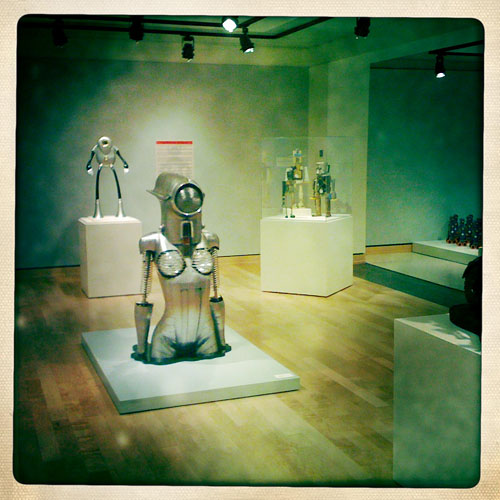
One project I’ve had deep in my back pocket for years has involved robots. Not real, functioning robots, but those that are put together from salvaged material. Sculptures, really. The nearby Mulvane Art Museum currently has a show of just these kinds of robots and we paid a visit yesterday.

robotgallery_sotc

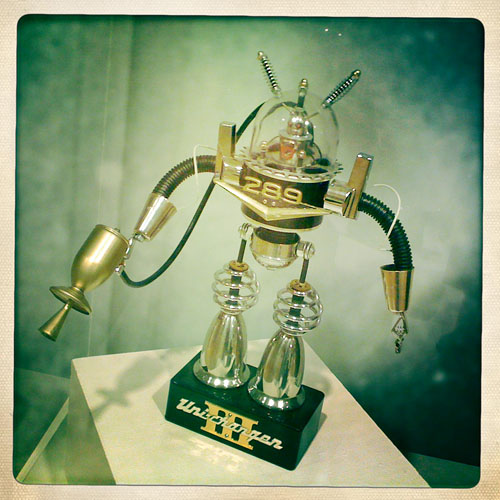
My favorite was this one by David Lipson of New York:

robot_sotc

I should mention that these images were taken with my iPhone using the ultra-sweet Hipstamatic app.

Will I finally build my robot from spare car parts and ancient bits of cast iron and bakelite? Who knows. But the show was inspiring and it got my juices flowing again. I felt creativity wake from the depths of its summer slumbers like a hungry grizzly. It’s good to be back, and next year I think I’ll find a nice cool location to shoot in for the month of August.

Hotel shot, take two

100731eldridge_sotc

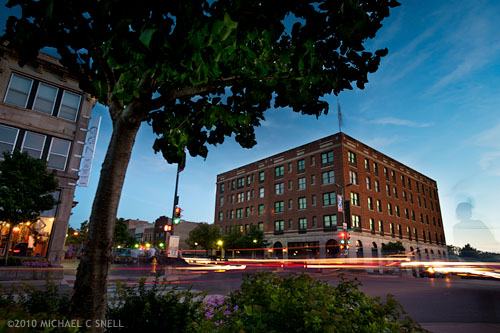
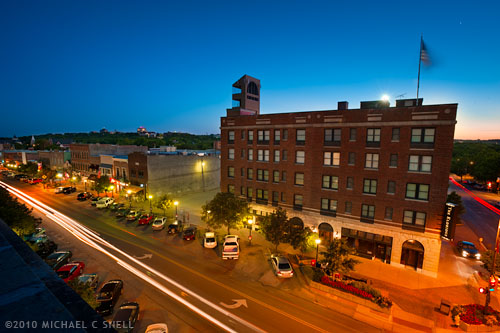
I returned to the Eldridge Hotel for another twilight shoot last night. You may remember a recent post where I shot it from a rooftop across this street. This time I went street-level and parked myself under a tree along the sidewalk catty-corner from the hotel. I was again going for a long exposure with some traffic streaking and a combination of the dying light in the sky and the warm street lights.

I’m discovering that this particular building is not lit very well, nor do there seem to be many lights on in the windows in the early evening. My solution has been to merge several shots together. The image above was a quick attempt this morning to see how it might look, but I’ll need to do a more involved layering later. While I was locked down on a tripod, I was also changing apertures. The differing depth of field between shots means that I need to mask out some areas to preserve the focus where I want it. Otherwise I end up with ghostly halos around the foreground elements.

The advantage I gain by using multiple shots is that I can use one as the base image — here I’ve chosen a later shot with a good sky — and then “paint in” elements from other shots. One example is using a shot taken earlier in the evening where the building itself had more light on it. While it’s nearly silhouetted in the base image, I put the earlier exposure on a layer above, added a black layer mask to hide it entirely, and painted the building back in using white as my foreground color. I could reduce the opacity of the upper layer to better blend it and achieve the level of light that I wanted on the building.

Another advantage was that I could get more traffic streaks than what actually appeared in any one photo. I picked dark shots from my bracketing that had good headlight and taillight streaks, stacked them on layers above the base image and set those layers to “lighten” in the layer mode menu. That made only the areas that were lighter than the base image visible — in this case, the light streaks.

Headlights from the street to my left would also occasionally throw some light into the leaves of the tree above me. I was also able to paint in some detail there using the same technique as I used on the light streaks.

The downside of this kind of shoot is that I’m tied to one position for about an hour. I usually move around and find different angles, trying to make the most of the light as it changes and fades. Here, I need to dedicate myself to one angle and stick with it in order to have all the layers I need for the final product. Last night the sky was surprisingly dramatic for a short period in the middle of this sequence an I regretted positioning that tree where it hid the sky but I was committed to stay put in order to keep all of the images registered. Since this is a local shot for me, it’s not such a bad thing. I’ll just keep going back and trying different things.

Lightroom’s Solo Mode

One of my first impressions of Lightroom when I started working with it in version 1, was that I thought the interface was beautiful. I liked the darkness and how it could disappear into the background and let your photos take the spotlight. Sure, there’s always room for improvement, but it was a breath of fresh air from the expected, light grey, Adobe-style interfaces that came before and it was much, much more successful than the over-the-top experimental interfaces that have popped up from time to time (anyone remember Kai’s Photo Soap or Power Goo?).

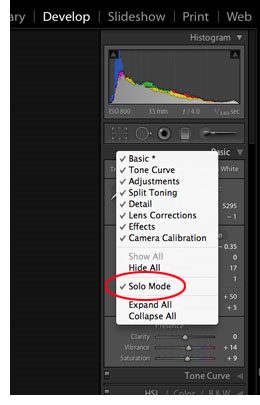
One thing bugged me, though. I didn’t like the way the panels would stack up when toggled open causing you to have to endlessly scroll up and down to get to the various functions. Then I found out about Solo Mode and it changed everything. With Solo Mode turned on, only one panel is open at a time. The previous panel collapses when you open a new one. A small thing, but it was probably one of the more significant factors in winning me over to the Lightroom workflow. Previously Bridges tabbed-panel system had been more comfortable for me. Clicking a tab moved it forward, hiding the previous panel behind. Bridge was in Solo Mode all along.

100730solomodeWhen I switched to my new Mac last month and installed Lightroom 3, I did a clean install and didn’t install over Lightroom 2. Therefore, my preferences weren’t picked up. No biggie, I wanted a clean start, but I couldn’t for the life of me find how to turn on Solo Mode again. After some googling, I found the answer. For some reason Solo Mode is not made obvious in any of the main, top menus — instead, you have to control-click (I assume right-click on a PC) on one of the panel headers to get the pop-up menu. There you can select which panels are visible, or — hallelujah — turn on Solo Mode. Someone correct me if I’m wrong, but I think this is the only way to get to this feature.
Like I said, it’s a small thing but it makes all the difference for me in my workflow to only have the one panel open at a time. Sure, I have to click the header of the panel that I want to use next to open it, but for me it’s significantly quicker than scrolling through a bunch of open panels.

Note to Adobe: can’t you put Solo Mode under the Windows > Screen Mode menu? That would make sense to me.

Breathing new life

100723bridgepan_sotc

With my recent investment in new hardware and software updates, I’m finally making a real time-investment in putting together my master Lightroom catalog. When I first went digital (after dabbling for a while, I made the serious switch in 2003), I archived all of my RAW files to DVD. Everything that wasn’t ridiculously hopeless got archived. Then I made my tweaks to the best shots and archived those, provided them to stock agencies, etc. My file names are chronological so the only real way of finding things was by searching by the date of the shoot. That, and I had a crude Extensis Portfolio database that provided thumbnails of all of my images and their pathnames, which showed which DVD they were stored on.

That was my system until a year or two ago when I began to migrate to using Adobe Lightroom as my main image cataloging system. I believe it was my trip to China in late 2008 when I began processing everything through Lightroom instead of Bridge and ACR. Everything from that point forward was in Lightroom, but everything prior was still in my old non-system.

Now, as I have downtime between shoots, I’m making the effort to add my digital files from 2003-2008 to my master catalog in Lightroom. After that is done, I’ll need to address my scans from transparencies that predate 2003, but that’s another kettle of fish.

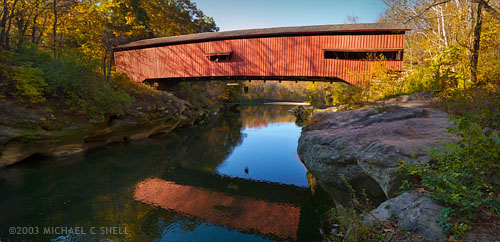
The beauty of re-processing some of these older images is that they can often be improved by the advances made in RAW processing software in the intervening years. The shot at the top of this post is one example. Shot in the fall of 2003 while working on a story about Indiana’s covered bridges, this was originally three vertical shots. The plan was to use them to make a panorama in Photoshop, but it was a time-consuming task at the time.

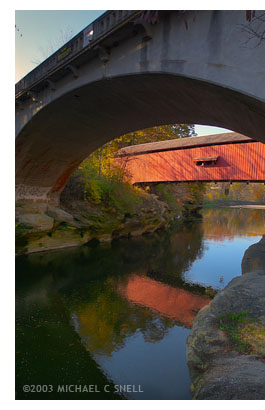
100723bridge_sotcHere was the situation: This particular covered bridge was located right next to a newer, concrete bridge that replaced it. They were so close together that I couldn’t get the whole bridge in frame with my 17mm lens because there was no room to back up. This photo of the two bridges gives you some idea of the setting.

So, I did what I could do. I backed up under the concrete bridge until it was just out of view. Then I fired off three vertical shots from left to right, making sure I had plenty of overlap along their common edges. I planned at the time to eventually stitch these three photos into a panorama, but I knew it would take some time to correct the wide angle distortion, mask the overlapping edges and tweak the sky and water to get a seamless blend. I set them aside for later.

“Later” came when I imported this shoot into my new Lightroom catalog last week. Seven years have passed and now stitching a panorama is automated. In Lightroom, you can select the three images and go under the Photo menu to Edit In > Merge to Panorama in Photoshop. The software takes it from there and you end up with a seamlessly blended, distortion corrected panorama in no time. Now I have one more covered bridge shot in my library.

Many other tools have been improved in the last seven years and I’ll share some other salvaged photos as I move through the files. It seems like Adobe’s image editing suite has arrived to a point where I can be comfortable making this kind of a huge time commitment to cataloging my images now, without having much worry that I’ll regret taking this path a year or two down the road. Sure, I expect things to continue to improve, but the overall system now feels mature enough to move ahead with confidence that time isn’t being wasted. That’s a good feeling.

Next up: a couple of small things that aren’t completely obvious in Lightroom that make life much easier…

Shooting local

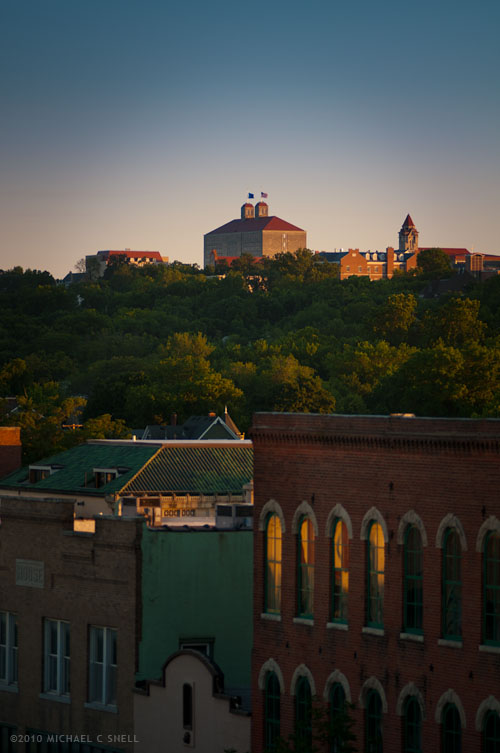
100716campus_sotc

An assignment in my own home town has spurred a new personal project. When I moved to Lawrence, Kansas, a couple of years ago (has it been that long already?) I had intended to begin documenting the town photographically. While it seems like shooting in your own “back yard” would be the easiest thing in the world, it’s amazing how hard it can be to actually get out and do it. It’s too easy to get distracted by work, or mowing the lawn, or just plain every day life. When I’m on the road, I’m there to shoot and nothing else so it’s easy to stay focused. Even if the weather isn’t perfect, I’m out shooting because I only have limited time on location. When I’m home, it’s easy to say “maybe the light will be better tomorrow night”.

But nothing kicks me into action like a paying gig so, when an assignment came along for a story on some local civil war sites, it finally got me out of the house. First stop: the Eldridge hotel.

The Eldridge was burned down on multiple occasions during the years leading up to the civil war by pro-slavery raiders. Rebuilt each time, it is now a local landmark. I wanted a new angle so I contacted my friend, Doug, who offices across the street to see if he could get me on the roof. Being the great guy that he is, he did just that.

After popping off a few exposures of the KU campus (above) I settled into the shot I had in mind for the Eldridge. I wanted a long twilight exposure that mixed the sunset with the street lights below. I framed it up on the tripod and attached the release cord. Then it was just a matter of firing off a few shots every few minutes as the light faded and the shop lights came on.

In the end, I combined a few shots to get this one:

100716eldridge_sotc

Since I had shot several variations while locked down on the tripod, I could easily stack different exposures on layers and “paint in” elements of each using layer masks. The bulk of this image is one shot, from late in the set where the sky was darkest, but I did paint in some of the facade of the hotel from a shot prior to sunset to give more detail and balance the contrast a bit. I also painted in a few people on the sidewalk that appeared in various exposures.

I’m going to keep exploring other angles for this shot. The microwave tower behind the hotel is distracting (I could Photoshop it out but not for an editorial shoot – darn those ethics) and I would rather be on an angle with the hotel to add some dimension to it. Next time I’ll try shooting from street level, diagonally across from the building and see how that works.

It’s nice to have plenty of time for this project. Unfortunately, I can’t always spend so much time on each shot but, in this case, I’m looking at the assignment as an excuse to do some work I’d wanted to be doing for myself anyway. And it all goes into the stock files eventually.

Locals vs. Tourists

4671581511_f522ed2180

While upgrading my computer, I figured it was a good opportunity to start fresh with my browser bookmarks and get rid of the masses of links that I had that no longer went anywhere. Clean house, you know? Of course, there are still bookmarks that I need — things I look at every day or nearly every day — and I’m going through the process of deciding what to re-bookmark, and what to let go of.

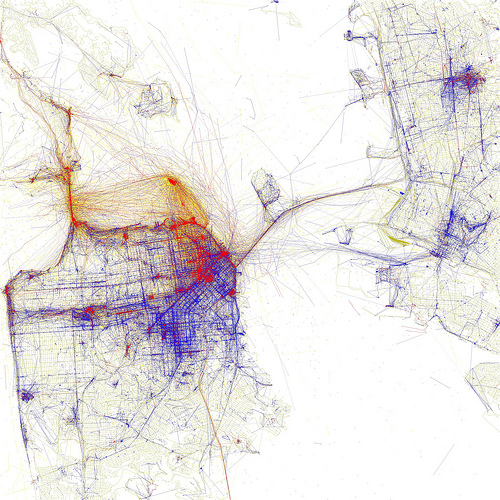
John Nack’s Adobe-centric blog is a keeper and it was on his site that I discovered this post that led to the cool graphic posted above. What is it? It’s one of a series of maps on Eric Fischer’s Flicker page (this one is San Francisco) that shows where, in several cities around the world, locals take photographs (blue points) vs. where tourists take them (red points). The yellow points show where it can’t be determined whether it was a local or a tourist taking the photo. There’s an explanation of how the data was compiled on Eric’s page. It may not be 100% scientifically accurate but it’s a really interesting look at how cities cater to different populations. I could look at these things for hours.

Can this be a useful resource to a travel photographer? Possibly. It might show where there are some landmarks or scenic areas that only the locals seem to know about. On the other hand, a dense blue spot might just indicate where some guy lives that takes 30,000 photos of his cat each day. But, given enough data, you’d think some real trends would emerge that would cancel out the flukes. I just think they’re fun to look at.