Category Archives: lightroom

Leipzig in blue

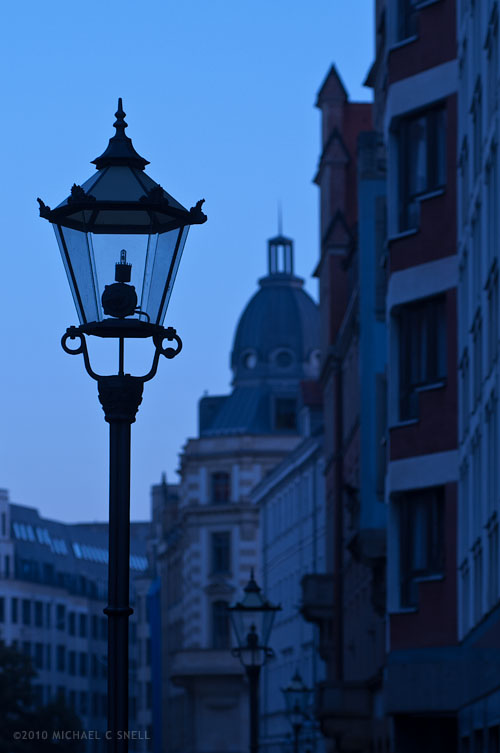
On an early morning walk through the old city of Leipzig, the light was a tad underwhelming. A little overcast and cool in color temperature, my inclination was to warm up the white balance of my Nikons to correct the color to a more pleasing tone. I almost always leave white balance set on cloudy for just this reason. I tend to like the warmer color cast for tourism shots. Back home and looking over the images on the computer screen, however, I found myself second-guessing that decision in this case. This photo didn’t respond very well to the warming and there were some distracting color combinations in the distant buildings that just didn’t come together. I decided to go against my natural tendencies and try a cooler color temperature to enhance the blueness that the scene had naturally and give more of the feeling of that early morning hour. I think it worked. The color pallet is more monochromatic and cohesive. The mood is stronger.

Digital provides so much flexibility in cases like this. I love having the ability to continue to experiment and play rather than having all my decisions set in stone once the initial film choice, exposure settings and filter selections are made on location. It’s a power that shouldn’t be abused, however. I don’t want to push things to a point that they no longer represent the actual scene — at least not for journalistic stock — but having the ability to tweak my on-site choices later, when I’m not pressured for time by changing light and other locational obstacles, is a great thing.

Do I wish that the street lamps had been on? Absolutely. But I stopped myself short of adding a lens flare in Photoshop. You have to draw the line somewhere.

Lightroom 3: noise reduction

100911candles_sotc

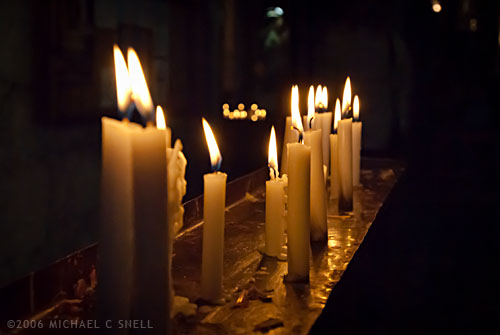
In 2006 I was in Santiago Chile shooting with my new-ish Nikon D200 and I found myself in the dark interior of a 400 year old church. It seemed like the ideal time to play around with the improved high-ISO capabilities of that camera. Back in the film days, I used to shoot with Fuji Velvia that I rated at ISO 40 nearly all the time. I did everything I could to avoid film grain and stepping up to an ISO 100 film was almost extreme for me. As I recall, my D100’s lowest ISO was 200 and it seemed really extravagant at the time to have all that headroom. I rarely moved off of 200, though, as the noise would creep in at 400 and especially noticeably by 800. The D200 had a lower minimum ISO of 100 and felt more in my comfort zone but there were tantalizing reports that it even gave good results at ISOs of 1600 and higher. Each successive body I’ve owned has improved even further but I still tend to stay at minimum ISOs as much as possible. Old habits I suppose, but I just don’t like the look of digital noise at higher ISOs and I like my RAW files to start out as clean as possible.

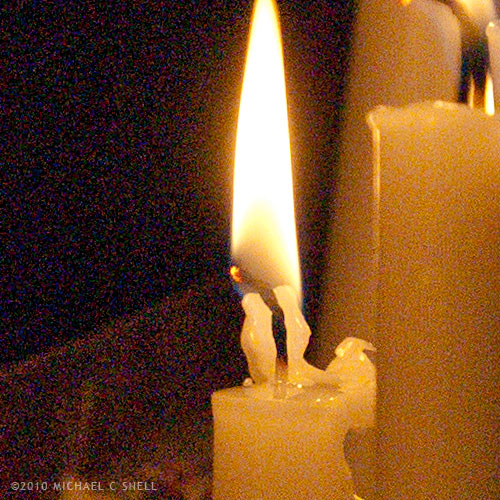
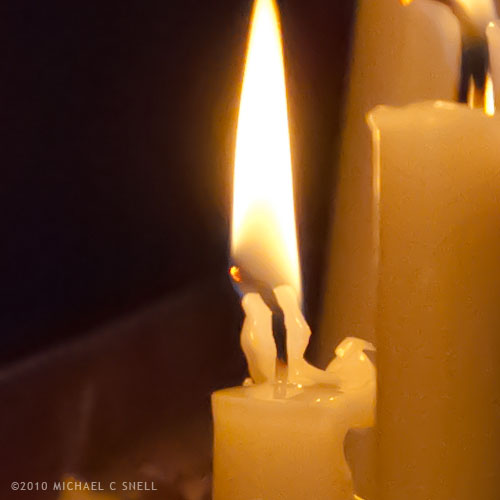
But back to that church — I didn’t have a tripod with me so I decided to experiment with higher ISOs to at least be able to capture something in that dark, candlelit interior. This shot of the candles themselves was taken at ISO 1600. It was a decent image when I processed it at the time, but there was some noise. I didn’t think much more about it until I was importing my Chile shoot into Lightroom 3 over the last couple of weeks and I decided to give the new noise reduction controls a test.

Here’s a crop at 100% of the image with noise reduction off:

100911noise_off_sotc

And, to keep these side-by-side in the post, here’s a crop with it on (I’ll explain more after the image):

100911noise_on_sotc

I’ll be the first to admit that this is not a true, scientific test. To be honest, I could have had a better result than that first crop four years ago if I had applied the noise reduction tools that were available at the time. What’s more, I’ve actually increased the noise issue a bit due to some exposure compensations that I’ve made in Lightroom. The idea here is just to show how much noise was in the RAW file, and how much Lightroom 3 was able to remove.

I’ve also really cranked up the noise reduction in Lightroom on the second shot. It’s more heavy-handed that I would typically use but, again, I wanted to kick the tires and see what she’d do. Luminance is maxed out at 100 in that second crop.

Is it perfect? No. There’s a bit of a painterly quality to the gradations, but it’s pretty amazing. You could continue to tweak the settings and maybe even add just a touch of LR3’s new Film Grain to disguise some of those gradation artifacts but, as a quick-and-dirty test, I’m impressed by the possibilities. I’m sure I’ll still stay in the low end of the ISO range 95% of the time, but I certainly won’t let dark conditions prevent me from shooting anymore. It’s comforting to know that even if the results aren’t great now, in four years your tools may improve to the point where you can salvage those images.

And if you’re wondering why I would add film grain after trying so hard to disguise high-ISO noise, it does seem counterproductive but it’s a technique I’ve used for years to disguise areas of retouching. Sometimes you’ll need to add a gradation to a sky or something of that nature and the retouched area looks smoother and more noiseless than the rest of the image, calling attention to your efforts. Adding a little noise or grain will unify the original image and the retouch and make everything blend. In small doses, that added grain never shows up on output. Maybe that will be the subject of a future post…

Lightroom 3: perspective correction

100705correctedandcrop_sotc

The new lens correction tools in Lightroom 3 bring perspective correction to the RAW workflow. Previously, I’ve had to go into Photoshop to make these corrections, but now they can be done right inside of Lightroom, which saves a few steps. However, I still prefer the Photoshop controls over those in Lightroom. I’ll try and explain why…

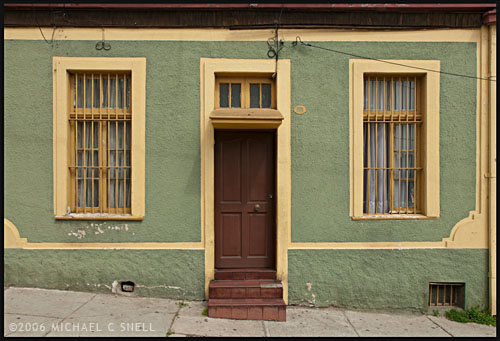
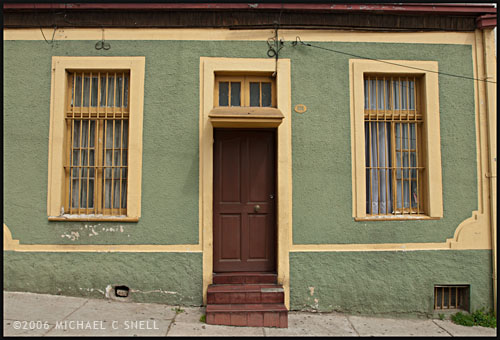
The image at the top of this post is the image after correction in Lightroom. Here’s the original image:
100705uncorrected_sotc

You’ll notice that the windows are tilting in toward the center of the frame — it’s perhaps most noticeable on the far right side where the edge of the building is leaning in as well. I take a lot of these kinds of shots and do my best in the field to keep everything straight in-camera, but sometimes you’re in a tight spot. Shooting wide and looking slightly up… you’ll get this kind of distracting distortion. A tilt-shift lens or a camera with bellows would take care of the problem, but you don’t always have that option available so it’s nice to be able to solve this issue via software.

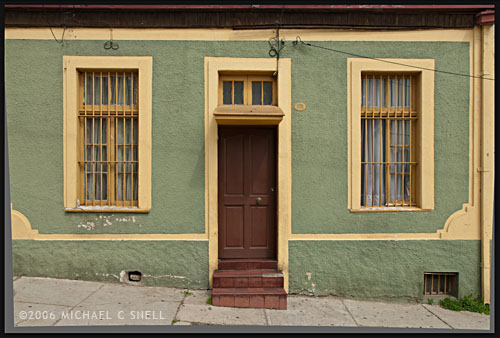
In Lightroom, you have a pair of sliders for vertical and horizontal correction. Moving these sliders creates an effect similar to tilting a print in your hands side-to-side or up-and-down. If you ever controlled perspective shifts like this in the darkroom by tilting your easel, you’ll be familiar with the effect. It works reasonably well but it’s a little like a funhouse mirror and any large movements introduce some strange, new distortions. In the end, you have something that looks like this:
100705correctednotcrop_sotc

The vertical and horizontal lines are now straight (except for the sidewalk which, in the case, actually did run downhill like that) but you’ll notice that we now have grey “background” showing on the bottoms and sides of the images. Lightroom makes its perspective corrections inside the frame so you end up with an image that is smaller than the canvas size, to use Photoshop terms. You need to crop the image down to get rid of these grey wedges. Not difficult, but another step.

I’ll use this method a lot I’m sure. It’s really convenient to have this ability inside Lightroom. However, my preferred method of perspective correction is still part of Photoshop: the Distort control under Edit > Transform.

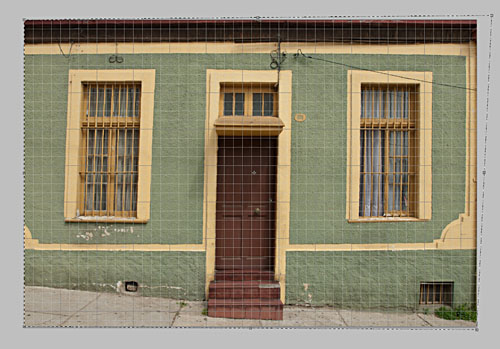
I turn on the grid in Photoshop first, to better see where things are skewed. Then, Select All and you’ll get corner handles on your image. It’s best to be zoomed out so that you can see some free space around the border of your image. By clicking and dragging these corner handles, you can stretch the image into alignment with the guides:
100705pscorrection_sotc

You can see the top-right handle has been pulled beyond the image frame here, eliminating the left-tilt of the right side of the building. The image will not show beyond the edge of the frame but the data is still there if you drag the corner point back. This gives you a live preview of what the final, cropped image will look like. Better yet, we’re making this correction to the outside of the frame so that there is no need to crop the image afterward. The perspective correction and crop are being handled simultaneously and there is no chance of an edge artifact getting left in your final file.

There is a Perspective control in the Transform group as well, but I generally prefer Distort. The reason is that Perspective tilts the image plane like Lightroom does — symmetrically. If I tug the right side out, the left side will move correspondingly. With Distort, each point moves individually — move the top right handle and only the top right corner distorts. I find this much more useful because the corrections I need to make are not always symmetrical.

Lightroom has a good set of correction tools — there are rotate and pincushion corrections there as well — but I’m glad to have the ability to go to Photoshop to fine tune images when needed. If I can do 90% of the image correction I need in Lightroom, I’m happy to jump over to Photoshop for the last 10%. No tool can do everything. When they try, they get incredibly bloated. Honestly, I kind of hope that Lightroom never adopts layers, etc. Keep it simple and I’ll go to Photoshop when necessary. The two programs work very well together.
Lightroom tidbits

100901chilecolor1_sotc

I’ve been giving Lightroom 3 (now 3.2) a real workout for the last few weeks. I’ve been importing my back catalog in massive chunks and making a quick pass at adjusting the original RAW files rather than importing the images that I had already tweaked previously in Adobe Camera Raw. This is a pretty big-stroke process right now — I’ll come back later and expand keywords and tweak the highly ranked shots — but it’s been a really interesting process to see the images improve. I’d like to think that the improvement is due to my own advancing skills in RAW processing, but the fact is that much of it is really due to improvements to the software over the years. Better processing algorithms and better controls.

I’ve been importing my 2006 images from Chile most recently and have noticed a couple of major advancements. One is Lightroom’s much improved ability to get rid of noise in high-ISO shots. Images that have never seen the light of day will now be going into my stock files because the noise that would never have passed Quality Control is now all but gone. Amazing. I’ll share some examples in the coming posts.

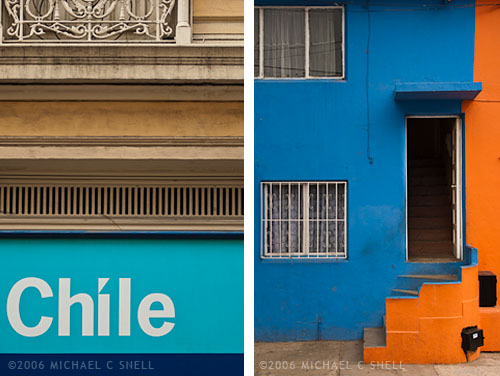
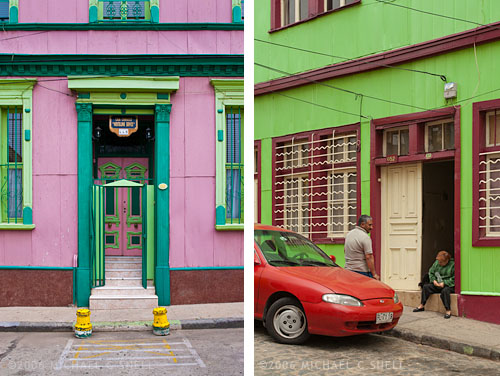
The most noticeable change in the images from Chile, though — especially Valparaiso — is how much more control I have over color now. Valparaiso is a city that is all about color. Colors you never thought you would see together, you’ll see in abundance in Valparaiso. Capturing some of these colors on film would have been frustrating. Sure, Velvia would have made that row of multi-colored row houses really pop. But then you’d round the corner to find a weathered, grey facade with the most subtle hues and you’d be cursing yourself for having 20 more exposures of that super-saturated film in your camera. One of my most favorite things about digital is just that — you can make decisions on a shot-by-shot basis and not be stuck with a film decision you made 10 exposures ago. Did you pop in a roll of ISO 800 film to shoot that dark church interior? Too bad now that you’re out in full sun and all kinds of contrast. No, being able to adjust ISOs and saturation levels for each individual image is a game-changer.

100901chilecolor2_sotc

And that flexibility doesn’t stop with in-camera controls. Lightroom (as well as all other image processors, really) lets you tweak color and contrast in ways that film selection alone never even came close to. The Vibrance slider in the Presence panel has become one of my favorite tools. More subtle than the Saturation slider, it affects the blues and greens more than already-saturated reds and yellows. Very nice. And the sliders for adjusting the hue, brightness and saturation levels of individual colors take that control to another level.

One other set of controls that I find myself using more and more often is the new perspective correction panel — actually the “transform” controls in the lens correction panel. While I still prefer the “distort” controls in Photoshop, it is nice having some of this ability in Lightroom. The controls take some getting used to but they are a welcome addition.

I’ll go into more detail on each of these and other Lightroom features in future posts and show some examples.

Lightroom’s Solo Mode

One of my first impressions of Lightroom when I started working with it in version 1, was that I thought the interface was beautiful. I liked the darkness and how it could disappear into the background and let your photos take the spotlight. Sure, there’s always room for improvement, but it was a breath of fresh air from the expected, light grey, Adobe-style interfaces that came before and it was much, much more successful than the over-the-top experimental interfaces that have popped up from time to time (anyone remember Kai’s Photo Soap or Power Goo?).

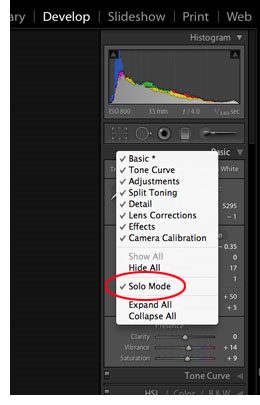
One thing bugged me, though. I didn’t like the way the panels would stack up when toggled open causing you to have to endlessly scroll up and down to get to the various functions. Then I found out about Solo Mode and it changed everything. With Solo Mode turned on, only one panel is open at a time. The previous panel collapses when you open a new one. A small thing, but it was probably one of the more significant factors in winning me over to the Lightroom workflow. Previously Bridges tabbed-panel system had been more comfortable for me. Clicking a tab moved it forward, hiding the previous panel behind. Bridge was in Solo Mode all along.

100730solomodeWhen I switched to my new Mac last month and installed Lightroom 3, I did a clean install and didn’t install over Lightroom 2. Therefore, my preferences weren’t picked up. No biggie, I wanted a clean start, but I couldn’t for the life of me find how to turn on Solo Mode again. After some googling, I found the answer. For some reason Solo Mode is not made obvious in any of the main, top menus — instead, you have to control-click (I assume right-click on a PC) on one of the panel headers to get the pop-up menu. There you can select which panels are visible, or — hallelujah — turn on Solo Mode. Someone correct me if I’m wrong, but I think this is the only way to get to this feature.
Like I said, it’s a small thing but it makes all the difference for me in my workflow to only have the one panel open at a time. Sure, I have to click the header of the panel that I want to use next to open it, but for me it’s significantly quicker than scrolling through a bunch of open panels.

Note to Adobe: can’t you put Solo Mode under the Windows > Screen Mode menu? That would make sense to me.

Breathing new life

100723bridgepan_sotc

With my recent investment in new hardware and software updates, I’m finally making a real time-investment in putting together my master Lightroom catalog. When I first went digital (after dabbling for a while, I made the serious switch in 2003), I archived all of my RAW files to DVD. Everything that wasn’t ridiculously hopeless got archived. Then I made my tweaks to the best shots and archived those, provided them to stock agencies, etc. My file names are chronological so the only real way of finding things was by searching by the date of the shoot. That, and I had a crude Extensis Portfolio database that provided thumbnails of all of my images and their pathnames, which showed which DVD they were stored on.

That was my system until a year or two ago when I began to migrate to using Adobe Lightroom as my main image cataloging system. I believe it was my trip to China in late 2008 when I began processing everything through Lightroom instead of Bridge and ACR. Everything from that point forward was in Lightroom, but everything prior was still in my old non-system.

Now, as I have downtime between shoots, I’m making the effort to add my digital files from 2003-2008 to my master catalog in Lightroom. After that is done, I’ll need to address my scans from transparencies that predate 2003, but that’s another kettle of fish.

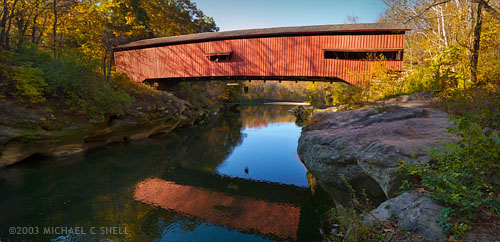
The beauty of re-processing some of these older images is that they can often be improved by the advances made in RAW processing software in the intervening years. The shot at the top of this post is one example. Shot in the fall of 2003 while working on a story about Indiana’s covered bridges, this was originally three vertical shots. The plan was to use them to make a panorama in Photoshop, but it was a time-consuming task at the time.

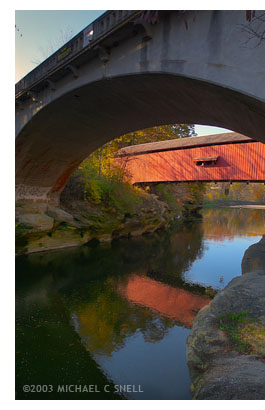
100723bridge_sotcHere was the situation: This particular covered bridge was located right next to a newer, concrete bridge that replaced it. They were so close together that I couldn’t get the whole bridge in frame with my 17mm lens because there was no room to back up. This photo of the two bridges gives you some idea of the setting.
So, I did what I could do. I backed up under the concrete bridge until it was just out of view. Then I fired off three vertical shots from left to right, making sure I had plenty of overlap along their common edges. I planned at the time to eventually stitch these three photos into a panorama, but I knew it would take some time to correct the wide angle distortion, mask the overlapping edges and tweak the sky and water to get a seamless blend. I set them aside for later.

“Later” came when I imported this shoot into my new Lightroom catalog last week. Seven years have passed and now stitching a panorama is automated. In Lightroom, you can select the three images and go under the Photo menu to Edit In > Merge to Panorama in Photoshop. The software takes it from there and you end up with a seamlessly blended, distortion corrected panorama in no time. Now I have one more covered bridge shot in my library.

Many other tools have been improved in the last seven years and I’ll share some other salvaged photos as I move through the files. It seems like Adobe’s image editing suite has arrived to a point where I can be comfortable making this kind of a huge time commitment to cataloging my images now, without having much worry that I’ll regret taking this path a year or two down the road. Sure, I expect things to continue to improve, but the overall system now feels mature enough to move ahead with confidence that time isn’t being wasted. That’s a good feeling.

Next up: a couple of small things that aren’t completely obvious in Lightroom that make life much easier…

Antiquity

This could be a long one but I’ll do my best to be brief.

My wife has an incredible collection of family furniture. Originally Scottish, some of the family wound up in Montreal where they were prominent engineers involved in, among other things, the building of the earliest canals along the St. Lawrence. Wealth followed and a mansion was built somewhere around the year 1800. The family had furniture built specifically for this home, sourcing the wood from as far as South America.

I’ll pause here to say that I’ve yet to entirely read the massive volume of family history that is somewhere among our packed belongings and I haven’t done any real research on this information. But, family lore has been passed down and I’m repeating it here. Hopefully I’ll get at least some of it right.

Not long after the construction of the mansion in Montreal, it burned. To the ground. But not before the servants were sent inside to save a few pieces of furniture including a large gentleman’s press (like a combination wardrobe and dresser), a gaming table, a foot stool and an enormous gilded mirror. In the following years, the family’s fortune disappeared but these few pieces of furniture survived and were dutifully passed from generation to generation. For the last 20 or so years, they’ve been in our possession.

The 200-plus years haven’t been entirely kind. We had the table restored a few years ago and, when it came time to move last year, we decided to deliver the gentleman’s press to the restorationists for its turn. It’s big — really big — and we figured that we could move it fewer times this way.

To make a long story short, it’s been there for a few months now and we’ve visited from time to time to consult on the details of the work. We made another stop yesterday and I decided to bring the camera along to record the progress. The piece had become nearly black with age and this trip would be the first where we would see a few of the parts with the build-up removed and the original glow restored.

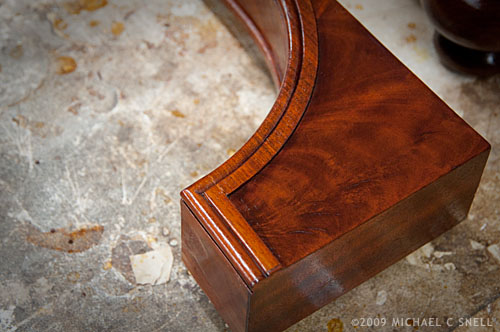
restored piece of antique furniture

Suffice it to say that they are doing an incredible job. I was photographing a few of the resurrected parts like this door bracket, marveling at the glow and depth of the wood grain when…

I got distracted.

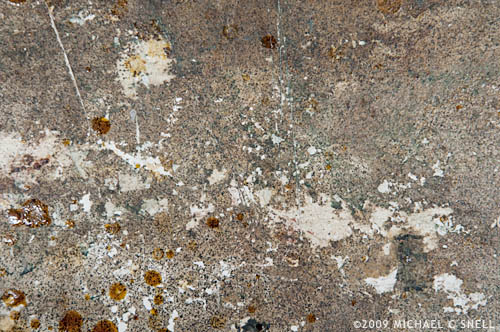
Did you notice the texture of the table that the woodwork is sitting on? I’ve been a semi-obsessed collector of textures for decades. They are part of an ongoing project of mine and this work surface was a gold mine. The restorationist probably thought I was nuts as I began to photograph the table top instead of the fruits of his restoration efforts. In the end I had over a dozen textures with a wide variety of tones and color like this:

texture

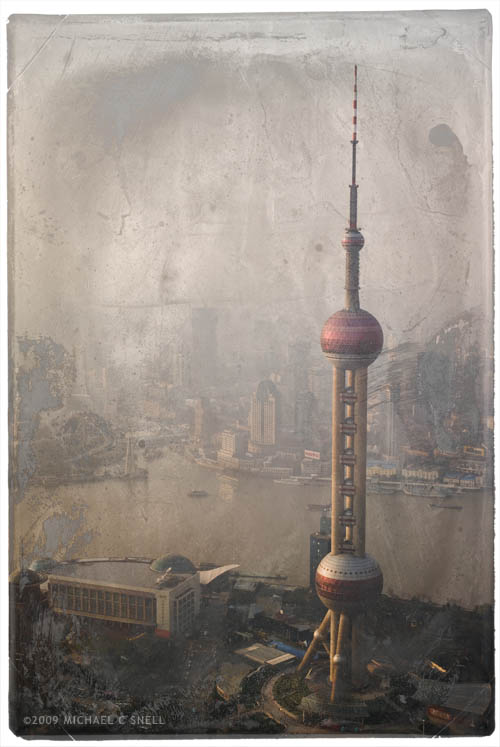
It may not look like much but — trust me — this kind of layered surface isn’t easy to find. What do I intend to do with them? Well, I’ve long been working on a series of artificially aged images that involve textures like these overlaid on other images to create the look of a worn and aged photo. I’ll post more of these later and plan an entire gallery on my site but here’s an example from last Fall’s trip to China:

Shanghai Pearl Tower

The original of this image can be seen here.

See? There was a photography-related aspect to this story after all. I’ll post more of my texture experiments later and, when the gentleman’s press finally arrives, I’ll post a before and after of it as well.

Just goes to show you — always take your camera.

Good night, Shanghai

Shanghai Pearl Tower

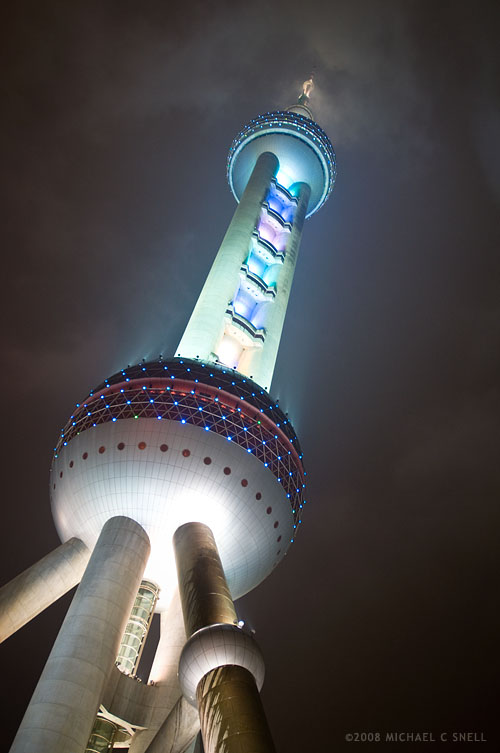
I had dinner atop the Oriental Pearl Tower on my last night in China and hoped to finally get that dusk shot I’d been waiting for. Not only was it threatening rain, but I had learned the night before when trying to shoot the skyline that most of the buildings were not lit until about an hour and a half after sunset. So, no twilight skies with lit skyscrapers on this trip. After dinner, it was pouring rain. Buckets. But, as I made my dash out of the building with my gear bundled tightly under my raincoat, I looked up and saw the tower lit for the first time. I found a small overhang from a ticket window that provided enough shelter that I could get this shot. One of the last 5 of my trip — and the rest of those were primarily shots I took of my amazing hotel room to show friends.

Not the shot that I had envisioned, but I like it. If the lights couldn’t be on while there was some sky color, I’m actually glad to have had the cloud cover so that the spotlights had something to illuminate. I’ll just have to come back when that newest tallest-building-in-China is complete and get my skyline shot from across the river then.

I’ve been lazy the last two days and haven’t updated my Alamy files at all so I keyworded 36 images this morning to cover today’s goal as well as that of the past two. Now I’m all caught up — for the time being. Only 874 more images to prep to meet my May 1 goal of 2000 images.

Shanghai – the last day

shanghai morning

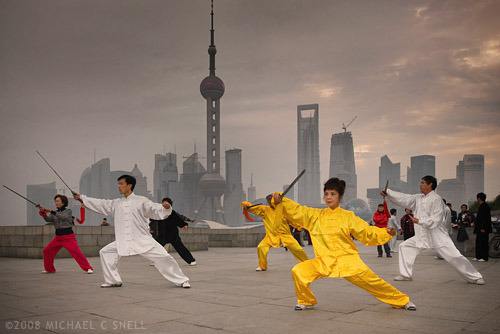
Hopes for the sparkling twilight or early morning skyline shot of Shanghai dimmed on the morning of my last day in China when I awoke to more overcast skies. Still, a cab ride down to the riverfront couldn’t hurt. If there’s no sunrise, surely there will still be something to shoot.

The color that was lacking in the sky was provided by the silk garments worn by the wonderful people of Shanghai who seem to come out every morning to exercise along the promenade. I previously posted a shot of a gentleman flying a kite that is one of my favorites from this trip. It was also shot this morning under the grey blanket of clouds and just goes to show: it’s not always what you are looking for, but what you find.

My Alamy goals are progressing well. Since my last post I’ve keyworded 95 images (my goal for those 5 days was only 50) and I uploaded another 223 which passed quality control earlier this evening. It’s a bit of a gamble to upload so many images at one time because, if any one is rejected by QC, the entire batch gets chucked out. Happily, everything sailed through.

I can’t get overly confident in my goals, however. Starting this weekend, I’ll be on the road for two weeks and probably won’t get any keywording done at all. I’ll need to either make up the slack before I leave or have lots of catching up to do when I get back. At least for now I can say that I’m ahead of schedule.

Pearl of Shanghai (part 1) and goal setting

Pearl Tower, Shanghai, China

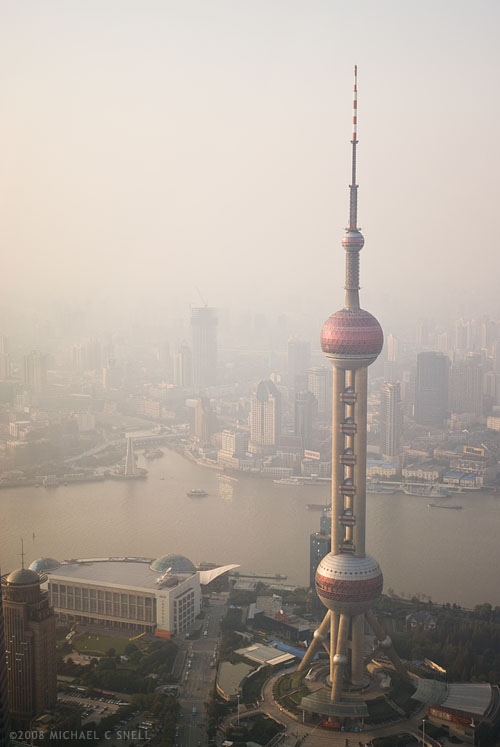
I mentioned in an earlier post that my main goal on this trip to the Shanghai region of China was to get a good, iconic skyline shot of the Oriental Pearl Tower and the recently developed Pudong area. I showed a photo of two nearby skyscrapers — currently the tallest in China — with a fairly blue sky behind. This shot was taken from the observation platform of one of those skyscrapers, the Jin Mao, a few minutes later. The haze was much thicker from above and I’ve actually boosted the contrast quite a bit here to somewhat compensate for it.

A tip for those of you who have also found yourself shooting through glass in situations like this: get your lens as close to the glass as possible and drape your jacket over your head and camera to block any reflections coming from behind and beside you. You might look stupid but it gets the job done. Any color cast from tinted glass can be corrected in Photoshop.

This was not the iconic shot I wanted but in some ways the haze helps to separate the Pearl from the older city in the background so I don’t think it’s is a total loss. I still wanted the shot that was in my head, though. I’ll post my progress on that front as my last two days in Shanghai sped on in the coming posts.

Meanwhile, in the present, I’ve been making goals for the coming year. I’m not really a New Year’s Resolution kind of guy but I do like to have goals. They keep time from getting away from me.

Over the last year, I neglected my image files on Alamy. Between travel, moving, and feeding other stock agencies, I just didn’t increase the number of images placed with Alamy the way I should. So… 2009 is my catch-up year.

As of yesterday, I had 1024 images online with Alamy directly. I say “directly” because other agencies I put images with also put them on Alamy so, technically, I have more on Alamy but these 1024 images are those that I am directly responsible for. For those of you who don’t know, Alamy requires more of the photographer in return for a larger percentage of sales. You do your own editing, you do your own keywording, etc.

I’ve decided to set a goal of basically doubling my Alamy files by May 1, 2009. My goal is 2000 images posted and keyworded. That comes to about 10 images per day which doesn’t sound like much to keyword, but I’ll also have to prep and upload about 900 of those. This morning I keyworded a dozen images so — so far — I’m ahead of schedule. Which I need to be, because I’ll be away the first two weeks in February so I need to get a head start.

If I meet my first phase goal by May 1, the second phase will be to double the number again by the end of the year. By January 1, 2010, I want to have 4000 images with Alamy. Quadrupling my files in one year seems daunting but I have a backlog of images that need to be on the market. My hope is that, by quadrupling my images this year, I can quadruple my 2008 income from Alamy in 2010. When you put it in dollar terms, there’s quite an incentive.

I’ll post progress reports of my new goal on this blog. I’m still deciding how to do that exactly but it may just be a series of short “progress posts” or a line at the end of each regular post. Either way, I hope by making my progress public, it will provide a further kick in the pants.

Wish me luck.